If you’ve got a flatbed scanner (or a digital camera with a good macro lens), and a Mac, it is really simple to back up copies of your important travel documents as a Password-protected PDF straight from Photoshop.
And then if you email the PW-protected PDF to yourself from a web-based email program (Gmail, Yahoo, etc.), you can quickly and securely access high-quality copies of your missing passport or license from anywhere with an internet connection.
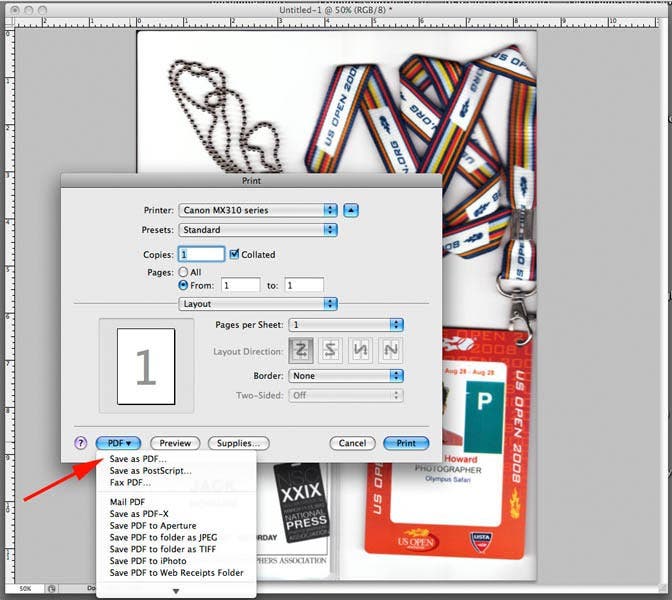
Step 1: Scan or shoot your identification and open it into any image editing program on your Mac, as we’ve done here. Then click Print and then click PDF>Save as PDF
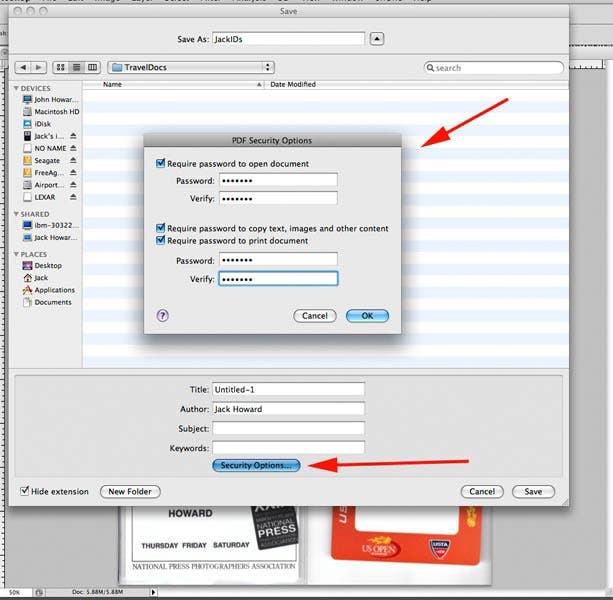
Step 2: Name your file and Click the Security Options… buttons to launch the PDF Security Options prompt box.
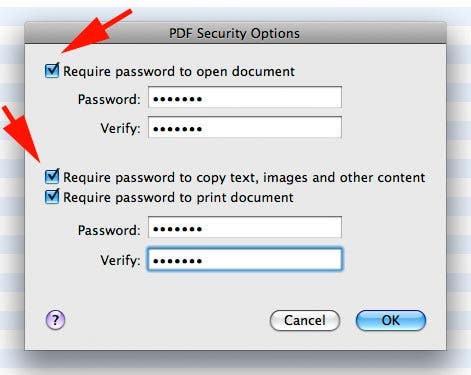
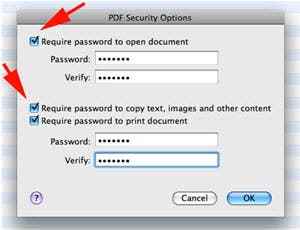
Step 3: You can make a password to open the document, and a different (or same) password to copy or print the document by checking or unchecking the option boxes. Click OK and then name and save your file.
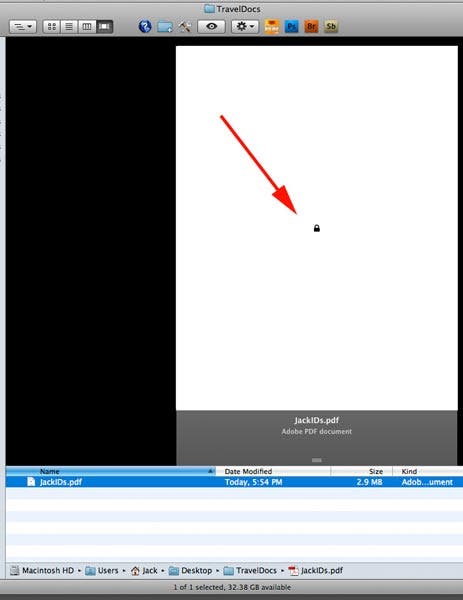
Step 4: As you can see, our securely saved PDF shows a lock icon instead of a document preview.
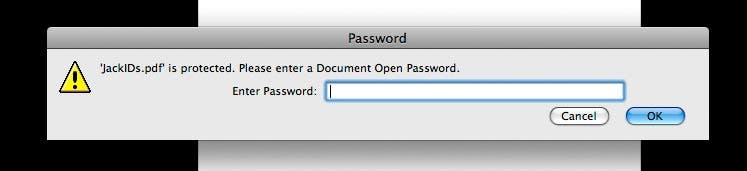
Step 5: Now, if you try to open the document, you get a Password prompt field instead of the document. If you enter the password correctly, you will be able to open the document as we show below.

This is a quick and dirty way to retrieve documents while on the road, and keep them from prying eyes at the same time, with a bit more security than simply attaching important documents to your email as basic attachments.
If at all possible, try not to use a public computer–instead ask the hotel manager if you may use their computer. Also be sure to clear the browser cache and history, and delete the images from the computer as soon as you are done.
Got any other travel tips for photographers?