
This item is no longer available.
Review Summary
2021-05-31T20:00:00
This replaced a GT-2500 and the difference is night-and-day. Hopefully the feeder will last longer than a year. So far, very pleased with the speed. The software requires some getting used to. Outstanding machine.
Scanups

2020-02-16T19:00:00
Scanner functions with no fuss or bother. It just inhales paper when sheet feeding multiple pages. Very solid construction
Swelfelo
2015-11-20T12:15:28
Beware! The copy to printer function in Document Capture Pro only works with an Epson Printer. If you do not have an Epson printer you will not be able to print copies of a document using Document Capture Pro without saving it to your computer first. The separate Epson Scan application has no connection to print directly at all. To print a copy of a document it must first be saved to the computer then printed and then if you don’t want to keep an electronic copy on your computer it must be deleted from its file then deleted again from the recycle bin. 23 Clicks are necessary to scan and print a file when you don’t want to keep the electronic copy. “Epson-Scan” may work with a few less clicks but not significantly so. You still have to save the file to your computer somewhere. Open it into an application in order to print it and then close the application and delete the unwanted files. UGH!!! If you have an Epson printer this problem is not supposed to exist. There is a print button in two places in the Document Pro window which will, I am told go directly to an Epson printer when you have one. When you don’t have an Epson Printer you get a message saying “The printer Driver is not available. Quit the application, then reinstall the printer driver.” There is however nowhere to reinstall the driver and none other than an Epson Driver and printer will ever be recognized. I have verified this with two separate second echelon techs from Epson. The other save to computer functions connected with the scanner seem to be working well. If you have an Epson printer, all is well. If you don’t want to make unsaved copies, all is well. But! If you want to make unsaved copies and you don’t have an Epson printer, do you really want an Epson Scanner with Document Capture Pro????? I do not advocate buying an Epson printer to solve this problem. I am questioning the appropriateness of buying an Epson Scanner. I think Epson should know better. If you don’t believe that 23 clicks are necessary, here are the steps.. Click 1: Open Document Capture Pro. Click 2: Click folder icon in the destination choices. Click 3: Choose Desktop unless you want to save the file. It will be easiest to find and delete. : Click 4: Click on the scanner icon. This opens the Main Settings dialogue box listing choices and parameters of the scan. Click 5: When you have set your parameters for the scan, click the highlighted scan button in right bottom corner. The document is scanned. An Image of the scan appears in the main window and also in the thumbnails window. Click 6: Click “File” to open its menu. Click 7: Mouse over “send” to open the send menu and click “Folder”. The Batch File dialogu box opens. Click 8: Choose file type, name and any other options listed. PDF seems to be best for “quick” (?) copy, and click OK. A PDF icon for the file saved appears on your desktop in the first open space available. Click 9: “Folder – Progress” box appears with advancing green line showing progress. When the space for the green line is filled click Close. Click 10: Double click the new PDF file to open it in Acrobat Reader. Click 11: Click File in Acrobat Reader to open its menu. Click 12: Opens Acrobat Reader print Dialogue Box. Click 13: Choose the parameters of an Acrobat Reader document that you want and the properties of your printer that are relevant to your copy. Click print, and it should print. We now have the desired copy but unless we want the electronic copy we are not done. Click 14: Click red X in top right corner of Acrobat Reader (if you have Win 7) or whatever works in 8 or 10, and close Acrobat Reader. Click 15: Click X in top right corner to close Document Capture Pro. Click 16: Mouse over and right-click the PDF icon on your desktop for the document just printed to open it’s right click menu. Click 17: Select “Delete” and Click it. A dialogue box opens “Are you sure you want to move this fine to the Recycle Bin?” No you don’t want to move it to the recycle bin. You want rid of it NOW but that isn’t a choice. Click 18: Click yes. The Icon disappears but we are not done. The file is in the recycle bin and it will become clogged if we don’t always remove the unwanted copies we just put in there. Click 19: Double click the recycle bin to open it. Click 20: Mouse over and right-click your file icon Click 21: Click Delete which opens a dialogue box saying “Are you sure you want to permanently delete this file?” Click 22: Click yes and the file disappears. Click23: Click X in top right corner (Win 7) and close the recycle bin. WHEW!!!
ruthchar

Accidents happen where life happens. Protect your favorite Adorama products and purchase a protection plan to stay covered from accidental damage, mechanical or electrical failure, and more.

If we can’t fix it, we’ll replace it at no additional cost.

Protect your product from drops, spills, and more.

Enjoy your gear without fear. We have you covered!

When regular use of your product over time results in mechanical or electrical failure.

We will never charge you a deductible after the purchase of a plan.

Our claims process is simple & easy and our customer service team is happy to help.
Adorama Protect powered by Extend is available for purchase to customers in the United States. Not available for purchase Internationally or in U.S. Territories.
Browse our FAQ
Epson WorkForce DS-7500 & DS-6500 document scanners
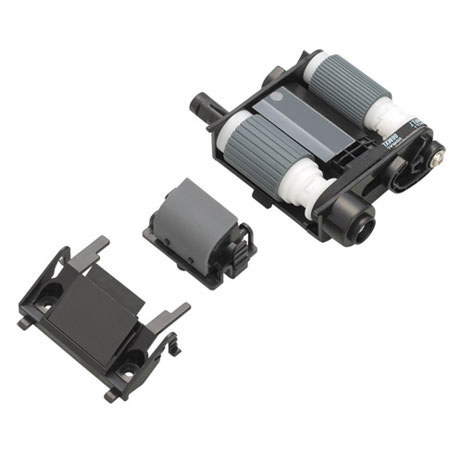
Epson Roller Assembly Kit is suitable for WorkForce DS-7500 & DS-6500 document scanners.