2016-07-07T20:00:00
Rated 4 out of 5
Works great (once I managed to set up the software
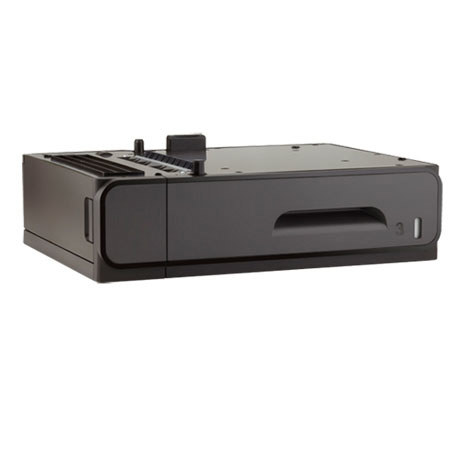
The only instructions that came with the unit were how to physically install it.
I wanted to reserve this tray #3 for printing cheques. However, I was unable to select tray 3 as the source of the media I wanted to print to. After racking my puny brain for some time, I was advised by a Live Chat support specialist to do the following (which worked). [SOLVED]
1. Control Panel - Devices and Printers
2. Select Printer Properties
3.) Device Settings tab
4.) Under "Installable Options", click on Tray 3 and change it from "Not installed" to "Installed".
HARDwood1
Originally posted at

2014-05-04T20:00:00
Rated 4 out of 5
A nice accessory to the OJ Pro X576dw printer
A really easy set up, I positioned the tray where I wanted it and placed the printer on top. It was recognized instantly and I just had to program in what size paper was loaded. I use 24 pound paper and it does not hold 500 sheets of that, it may hold 500 sheets of 20 pound. Since the printer has a duplex built in, I normally print to both sides to save paper and use 24 pound paper absorb the ink on both sides a little better than standard 20 pound.
Be careful not to overload it, I put the maximum amount of paper into the tray and it immediately jammed. After removing the jam and some of the paper it worked great. I'd say that it's about 350 sheets in capacity with 24pound paper. It would be a great product if HP were to make the tray deeper so you could drop a whole ream of paper into it without a second thought.
Gjilane03
Originally posted at