
This item is no longer available.
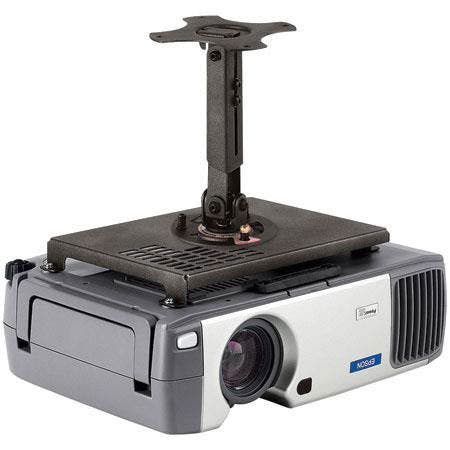
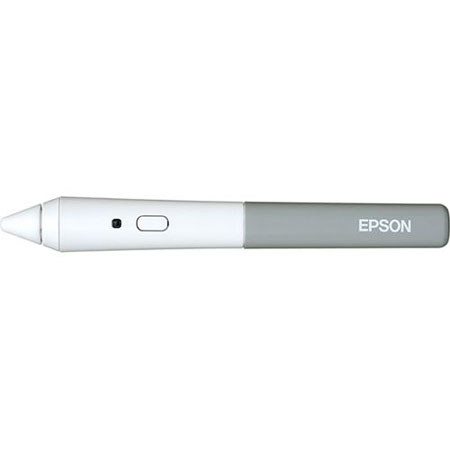
With Epson's Easy Interactive Pen you can tap into some of the more brilliant functions of their BrightLink Interactive Projector. Once you've installed the appropriate software (such as RM Easiteach, TeamBoard, or Easy Interactive Tools) and calibrated your computer with the projector, you can actually "write" on your presentations as you give them using this special, inkless interactive pen. As with the projector, this infrared pen doesn't require any kind of special whiteboard. Use a standard white board, blackboard, a wall -or even wood paneling in a pinch.
You have the option to use this pen in whiteboard or interactive mode. While both modes have some overlapping features, in whiteboard mode, you will be able to start from a completely blank screen or you can import images, then "draw" on your presentations, save them and print them out. In interactive mode, you have the option to view whatever is on your computer screen, such as web pages, images, Excel sheets, Word documents, or whatever else. You will also have the further option to annotate each screen that appears, so that you can write or draw on whatever you're projecting and save it.
While the pen only has one button, it nevertheless offers a few different functions, if you wanted to use it as a mouse. To right-click, hold the one-touch button and tap the image surface with the pen's tip; to left-click, simply tap the image surface with the tip. To double-click, tap the image surface twice and to drag, tap the image surface and drag the pen tip. Beyond these features, the pen comes with two AAA batteries and also has a helpful battery light indicator to let you know when you need to replace them.