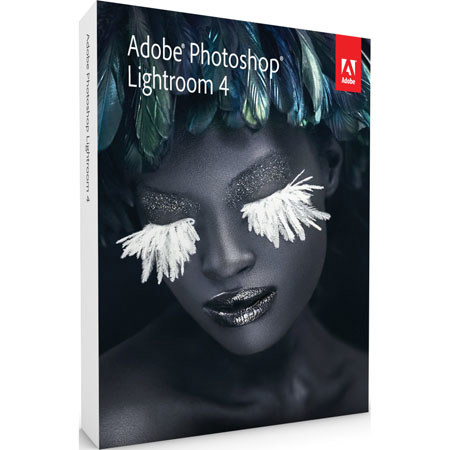
Adobe Photoshop Lightroom 4 Software Upgrade for Mac and Windows
SKU: ABLRV4MWEU
This item is no longer available.
Recommended Alternatives




Share:
Overview
Compare
Learn
Specs
Protection
Reviews about this item
Review Summary
2013-03-25T21:00:00
Rated 5 out of 5
Great Upgrade from 3.6
I use this product for wedding, family, portrait, model and special event photography. This is a great upgrade with additional features I like. It has also cut down on post processing time a lot. I would definitely recommend it to any beginner, intermediate or professional.
The S.
2013-03-18T21:00:00
Rated 5 out of 5
A must Product for a Photography
I recently upgrade from light room 3.6 to four and as far as i can tell it is everything and more that i need to edit my photos with. Plus it is a must have if you edit lot of files like i do. you can not go wrong with this product
BRAD R.
2013-03-11T21:00:00
Rated 4 out of 5
Fantastic Upgrade!
I use LR4 primarily for business purposes and find it very useful to streamline color batch processing/color editing. I normally work with it in conjunction with Adobe CS6 and find it very easy to switch back and forth between both programs.
CAROLINE S.
2013-03-06T19:00:00
Rated 3 out of 5
Widely acclaimed, Support lacking
Adobe could learn a lot about user interface from Picasa. LR offers more post processing options but it has an arcane, difficult and buggy cataloging function. If you go to Adobe support be prepared to spend much more time verifying your purchase and identity than getting help for you problem. Skip the tech chat since you will be shuttled through something like a phone tree only to be told that you should go look for an answer on the forums. Also check into their policy on installation on ALL of your machines from a purchased DVD copy.
TOM F.
2013-02-07T19:00:00
Rated 4 out of 5
Nice upgrade to LR 3
I would call myself a serious amateur and I use Lightroom to process a lot of family photos as well as some more artistic work. I like the sliders and find the updated interface a welcome improvement over LR3. The ability to non-destructively crop, adjust, and even create virtual copies of a photo is very usefull and efficient. I would like to have the ability to turn on some contextual help for sliders and tools within the interface. A brief blurb on what Saturation or Vibrance, etc. effects would lessen the learning curve. Overall I'm very happy with this product and hope to find it made ever more powerful with each succeeding version.
DOUGLAS B.
2013-02-05T19:00:00
Rated 5 out of 5
Skipped a release, Glad I waited.
Combined with an upgrade to Win Pro 8, 64bit has made this a very good investment. RAW data processing made quicker,easier and more accurate.
Studiob
2013-02-04T19:00:00
Rated 5 out of 5
Best lightroom yet
I love the way it easily transfer my old library and took keywords from image labels.
kwicken
2012-05-13T21:00:00
Rated 4 out of 5
LR4 Review
LR 4's exposure slider was changed. It used to have a more natural feel, functioning like the camera's exposure. But, now it is more like brightness, and there are three new sliders which substitute for what it used to do. They are highlights, shadows, and whites, and they provide very precise control that didn't exist before. This is great, but I still would like the old exposure and brightness and simply would have added the new sliders for more detailed precision. You can still go back to the LR3 method - in Camera Calibration (at the bottom) select Process, 2010. Two very nice new features are white balance and noise adjustments in the brush and gradient tools. There is also video adjustment, but I haven't used it yet. Overall, for the price, it is certainly worth an upgrade or outright purchase. It's probably the most powerful RAW editing software and file management system, and it is very intuitive.
Stu P.
2012-04-26T21:00:00
Rated 1 out of 5
Can't Upgrade
Can't upgrade from Version 1 to Version 4
DJ
Adobe Lightroom 4 Specifications
Related Articles & Videos
Adobe Photoshop Lightroom 4 Review
Is Adobe Photoshop Lightroom 4 worth the upgrade or getting for the first time? Read on and find out why this version rocks while costing less!

Lightroom Keyboard Shortcuts
Learn which keyboard shortcuts will save you a ton of time in Adobe Lightroom—and how to easily find them in the software!
Related Products at Adorama
Can You Get It Right In Camera? NO!—AdoramaTV
Can you get a perfect photo in camera, or do you always need to fix it in post-production? Mark Wallace takes a controversial stand.
Read moreAbout Adobe Lightroom 4
The Adobe Photoshop Lightroom 4 Software Upgrade for Mac and Windows is a complete photo management and editing suite for Mac OS X and Windows. Ideal for enthusiasts and professionals alike, Lightroom takes a nondestructive approach to photo editing, leaving the original files unmolested. All your adjustments and edits are stored in a database and applied to an image on the fly, so that you'll always be able to go back to the original image. This enables you to execute as many post-processing adjustments on a photo as you'd like, without making permanent changes to the original image.
Lightroom also serves as a powerful organizational tool for your photographs. Organize photos to suit your needs via an intuitive folder-based data structure. Lightroom lets you store images on multiple storage devices and it stores low-resolution previews of each image in its central database, allowing you to browse photos even when the original files are offline. You'll be able to search your images based on any number of criteria, accelerating the process of locating a specific image.
Lightroom's interface is divided into five major components: Library, Develop, Slideshow, Print and Web. Each screen serves its own purpose and you can go back and forth between them easily. There is some overlap in functionality, but for the most part, the components are compartmentalized.
The Library screen is where you organize and browse your photos. Enjoy full access to all folders in your library from this screen, allowing you to reorganize as needed. Apply keywords, ratings, color labels and metadata additions to images. You can make custom searches to create "Collections" based on any of these criteria. The "Smart Collections" function updates on the fly as additional images meet your criteria. For example, you can have an up-to-date collection of all images that you've given a 5-star rating. There is also a "Quick Develop" panel allowing you to make minor adjustments to an image, without having to venture into the Develop screen.
The Library also serves as the gateway to import and export images. Clicking "Import" brings up a redesigned screen: The Import window now expands to fill your entire display. Browse through your hard drive or a memory card to find images for import. You can leave the images in their original location, copying or moving to a different folder, or copy and convert them to Adobe's DNG format. Apply Develop settings, add metadata and add keywords during import, such as one for the camera used to capture the photos. Rename files and save a second copy to a backup drive during import.
When you've finished editing, use the Library screen to export your photos with ease. You can use the "Export" function, which brings up a window with numerous settings - including image size, sharpening, file format and the like - that you can customize. There is a new "Publish Services" section, enabling you to send images to your hard drive or Flickr with ease. Create as many presets for Publish Services as you'd like, giving you one-click access to frequently used export operations. This section can be further expanded via third-party plug-ins, available from Adobe's Lightroom Exchange website.
The second major component of Lightroom is the Develop screen. This is where you'll do the vast majority of your photo editing and toning. Perform any adjustment imaginable here, including color temperature, exposure, black levels, contrast, sharpness and brightness, to name just a few. You can make adjustments via sliders or tone curves, discretely modify color channels and convert images to black and white. Numerous presets are available, allowing you to quickly apply a certain "look" to a photo and you can create your own presets based on your favorite settings.
The Develop screen also features useful History and Snapshot functions. History lets you browse through all of the adjustments you've made to an image, in the order that they were made, so that you can revert back to any stage in the image process. At any time, create a snapshot of an image, which saves all of the settings you've applied, allowing you to continue to experiment with a photo after you've found a look you like.
Remove dust spots and red eye from photos, thanks to Lightroom's spot editing tools. Create image masks to apply graduated filter adjustments to a photo, or use the brush tool to dodge, burn and make other spot adjustments. You can add vignettes and simulated film grain to images, great for breathing analog life into digital photos.
With distortion correction, "defishing" of images captured via fisheye lenses can be done from within the program. Correct for both fisheye and rectilinear distortion, a capability highly useful for those shooting with extreme wide angle lenses. Numerous lens profiles are included with the software and you can save your own presets for oft-used lenses.
Lens corrections can also eliminate the keystone effect that ensues when your camera is not straight-on a subject. Basic crop and rotation tools are also available for quick and easy adjustments. If there is anything that can't be handled by Lightroom, it's easy to export a photo to Photoshop CS4 or CS5 for editing; any changes you make to an image in Photoshop will be automatically reflected in Lightroom. Lightroom's other three screens are all about sharing your images. The Slideshow screen gives you all the tools necessary to create digital slideshows of your images, complete with transitions and music. View these from within Lightroom or export them to a PDF or video file to share.
The Print screen allows you to print your images in any way imaginable. Adjustable for many standard paper sizes, it lets you visually lay out photos on them, allowing you to maximize the number of photos on a single page - thus helping to reduce printing costs. Lightroom can automatically position photos so that space on a page will be used as efficiently as possible. Adjust prints for different paper types and color profiles and add a signature plate if you wish.
The Web screen gives you numerous means of outputting photos to the web. Adobe includes a number of HTML and Flash galleries, allowing you to create a web gallery without any knowledge of programming. These can be customized to suit your needs and third-party galleries are available via the Adobe Lightroom Exchange website.
Top new features in Lightroom 4 include: Highlight and shadow recovery, photo book creation, location-based photo organization, extended video support, white balance brush and additional editing brushes, video publishing, soft proofing, improved online sharing integration, e-mailing from Lightroom and importing libraries from other software.
