White balance (WB)is a camera setting that adjusts the color temperature while taking an image, ensuring that objects that look white in reality also appear white in the photograph. It corrects color tints caused by different lighting conditions, from the warm orange of a sunset to the cool blue of shaded areas, resulting in more natural-looking colors. Let’s take a look at WB from three different perspectives: beginner, enthusiast, and professional.
Level 1: The Absolute Basics
If you wear orange-tinted sunglasses, everything looks orange at first. But after a few minutes, your brain adjusts, and “white” paper looks white again, as it automatically corrects colors.
The Problem: Your camera, however, is not necessarily as intelligent. If you take a photo under warm, yellow bulbs, everything takes on a yellow tint. If you shoot in the shade, you find a blue color cast.
The Fix: There is a setting on your camera called White Balance that tells the camera what white should look like so it can remove unwanted color casts. When a photograph’s colors look unnatural, appearing either too cool or too warm, it means the setting is incorrect. The solution is to dial in the appropriate white balance before capturing your image, which we will cover in the section below.
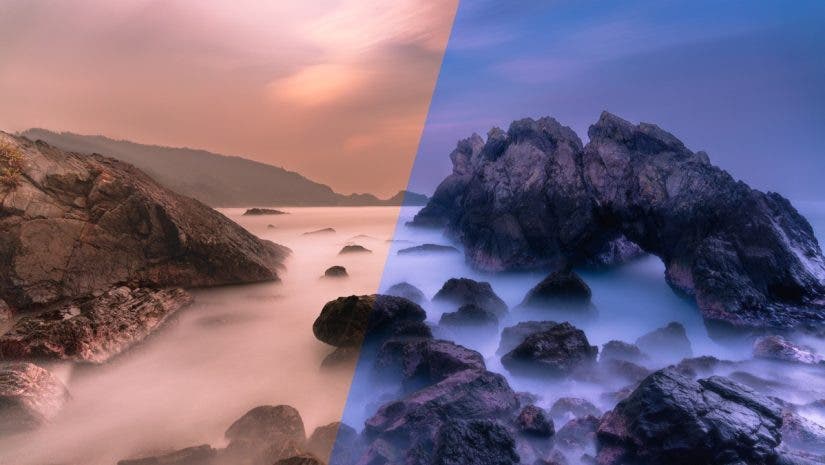
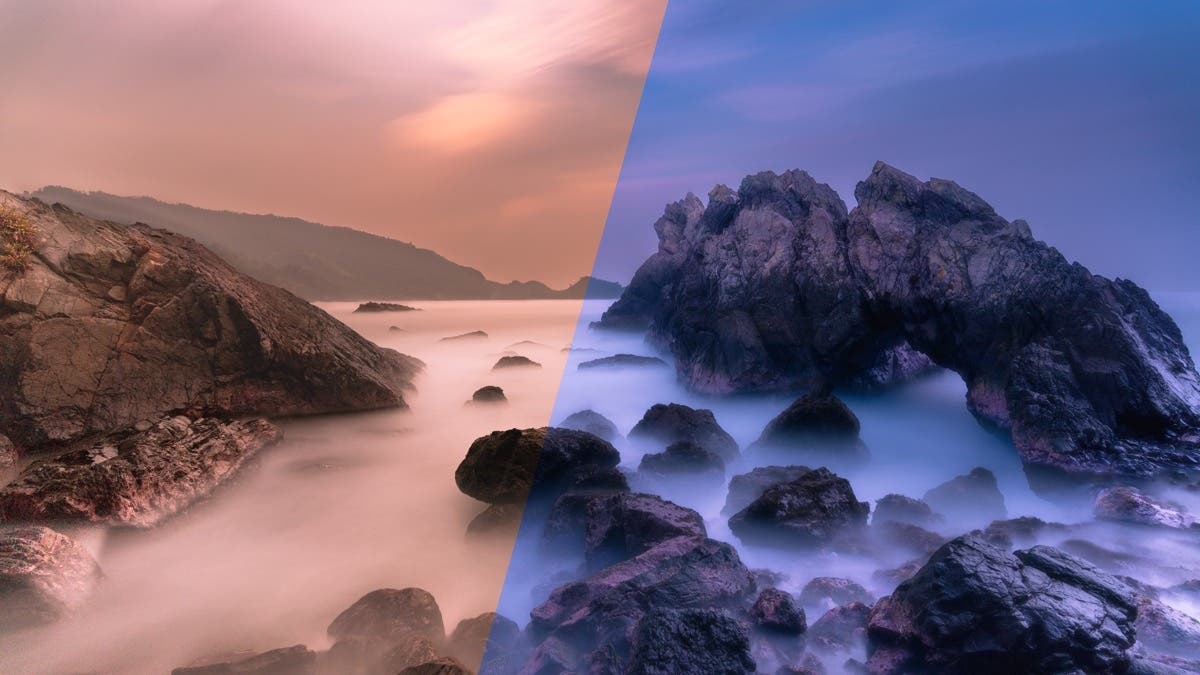
Auto White Balance (AWB) mode: In AWB mode, the camera evaluates the scene and selects the most appropriate white point. However, the camera may not get it right, as shown in the image below.

Level 2: For the Growing Photographer
The color of light is measured in the Kelvin (K) scale. Yes, the same Kelvin that measures absolute temperature. You will see this on your camera’s screen when changing the white balance.
- Low numbers (2000K – 4000K) are warm lights, like candles or warm bulbs (Yellow/Orange)
- High numbers (6000K – 8000K+) are cool lights, like overcast skies or open shade (Blue)
- Midday sun measures somewhere between 5000K – 6000K
The Problem: Relying on AWB may yield inconsistent results due to variations in color temperature, even when capturing multiple images under the same conditions.
The Fix: Use any of the following methods to tell the camera what the scene’s light temperature is and what you want white to look like.
- Presets: Use presets in your camera menu (Daylight, Cloudy, Shade, and Tungsten). This locks the color calibration, ensuring that a warm sunset has the shades you want, or a moody blue hour shot retains its cool tones.
- Manual Kelvin selection: Choose a Kelvin temperature manually. For example, set the white balance to 5600K for outdoor daylight scenes; 5600K is the standard photographic reference for neutral daylight. If you buy a studio light labeled Daylight Balanced, it will be 5600K.
- Other Tools: Use Grey Cards/Color Charts to correct the white balance before the shoot.
Example: Methods of Adjusting White Balance
Suppose a warm lightbulb you want to take a photo of has a temperature of 2700K. When you set your camera’s white balance to 2700K, you are telling it that 2700K is the standard for “true white.” As a result, the bulb will appear neutral rather than warm.
To preserve the warm glow of the bulb, you must rather set your white balance to a higher color temperature than the bulb’s, e.g., 5000K or the Daylight preset.
| Light Source | Camera Setting | Visual Result |
| 2700K (Warm) | 2700K | Neutral/White |
| 2700K (Warm) | 5000K+ | Warm/Orange Anything below 5000K will appear warm |
| 5000K (Cool) | 2700K | Deep Blue Anything above 5000K will appear cooler |
Level 3: Pro Tips
Shoot RAW: We are all familiar with JPG image files, the most common image format.
Image Quality is a camera setting that lets you choose RAW instead of JPG. The RAW setting captures the light falling on the sensor and writes it to an image file so rich with information that you can easily adjust the white balance in post-processing software like Adobe Lightroom. A RAW image may also be converted to JPEG after editing.
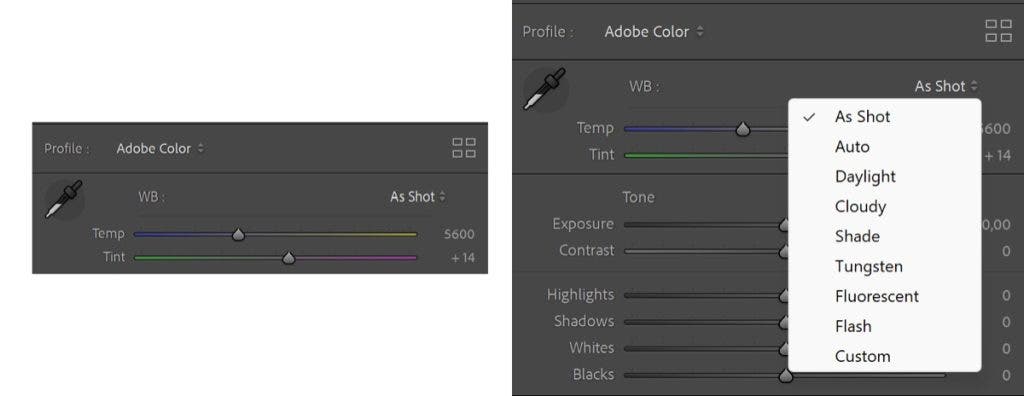
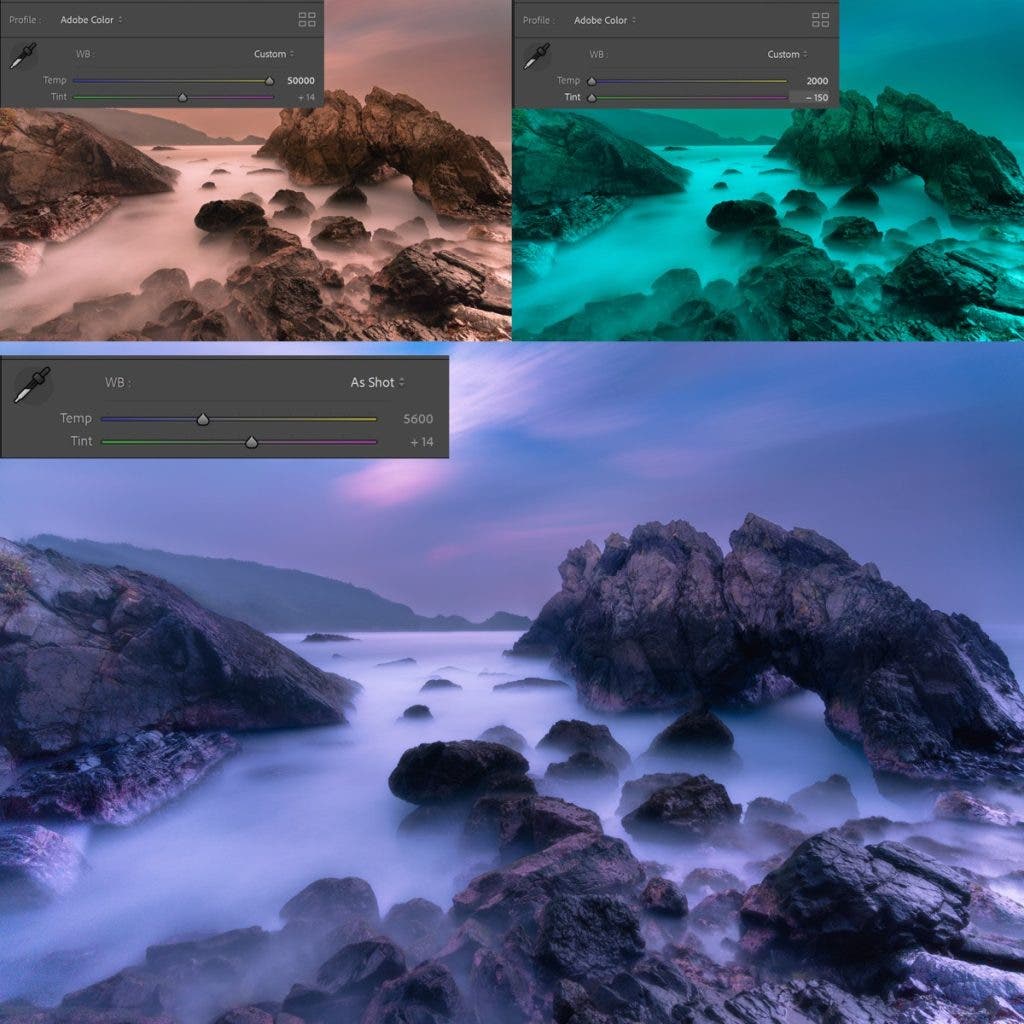
Experiment: You can intentionally change the white balance in post-processing.

Final Remarks
Experiment with different white balance presets or Kelvin values, and learn which suits your style. As long as you are taking RAW images, you have greater versatility to adjust the white balance in post-processing.