
This item is no longer available.
PTZOptics VISCA Camera Control Software allows users to control up to 16 cameras directly from any PC or Smartphone on your network. Activate the WebRemote for far-end camera control from mobile devices or computers over LAN, Wi-Fi, WAN IP Networks. Use the PresetVisualizer to layout your room presets visually. Simply click the area you want to see and a whole new level of control is at your fingertips!
• Advanced SONY VISCA commands using RS-232/USB adapter
• Up to 256 presets
• WebRemote - Use on any computer/smartphone
• PresetVisualizer- A visual layout of your camera presets
• Control up to 7 cameras in a daisy-chain connection and 16 cameras in home run mode from one computer
• IP Remote- Remote camera controls via IP
• Free trial available upon request
• Keyboard Controls
• Software works with virtually any camera that supports SONY VISCA
The Interface
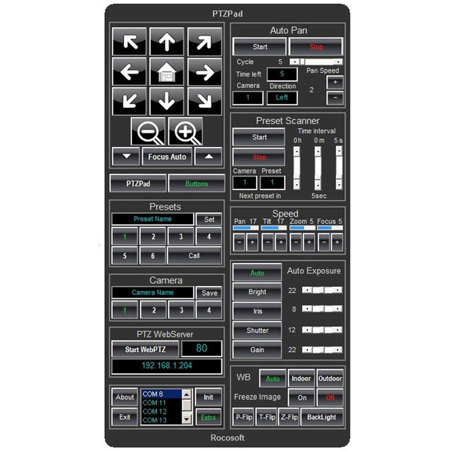
The PTZOptics VISCA Control Software is a remote control for your camera(s) that you can access from any computer or device on your internal network. Under the hood you will find access to advanced features such as: a camera manager, web server and preset visualizer. The top portion of the remote interface includes a "Home" button along with 8 direction keys, which you can use to control your camera with a mouse, keyboard or USB joystick. Below the control section you have access to zoom and focus controls along with a camera selection bar. Yes, this software can control up to 8 cameras with one computer! Next, they have control of the presets which include the ability to name presets.
One of the most important features is the ability to name your presets. Once your presets are named you have a easy to use solution that anyone can use to pick up where you left off. Below the presets is where they have the "PTZVisual" which includes the ability to have live video preview (using a USB camera connection) or take a room snapshot to use for setting up visual presets. Below the PresetVisualizer they have "Web Control" which allows you to turn on/off your webhosting which allows other computers and smart phones to take camera control.
The best way to grasp how people are using this technology is to look at a few examples of the PTZ-Visual in action. In essence the PTZ-Visual can be used with any photo (ideally the room you are using your camera in) to overlay your preset positions visually. For use in a conference room or distance learning/classroom setting the ability to add headshots with name tags is also available. Once you have your room photo in place and your presets lined up you only have to align your camera presets with the actual corresponding locations and your done.
Actual student photos can be used and placed as preset or we can simply mark out the important areas for a distance learning video call. The PresetVisualizer is our visual layout of the cameras views we will want to use during our video call. One preset is on a SmartBoard, another is on the teachers podium and another is on the classroom full of students. If we have multiple cameras in use we can use select between them in the main panel and use the visualizer to easily select between presets.
Let's take the conference room example where we have 8 people sitting around a table on both sides of a video call. The PresetVisualizer can be used to allow users from both sides of the video call to easily select who they want to see on the main screen. This set up works well for telepresence and video conferencing applications.
Taking things a step further PTZOptics also support keyboard control. Keyboard camera control is useful to simply the devices you need to operate the camera while still providing a easy user interface. All you have to do is enable the keyboard control (careful to un-enable it when you done) to turn on the keyboard for camera controls.