One of my favorite aspects of the editing process is the finishing touches. After all your hard work capturing the photo in the field and pushing and pulling adjustment sliders in post processing, you finally get the chance to zoom in and put the finishing touches on your masterpiece. Typically, sharpening is one of the last steps of the editing process. A good sharpen is one you don’t even realize is there. It’s essential to perfect the sharpness of your image for optimal results. This is true regardless of what you plan to do with it. In this guide, we’ll be exploring four of the best ways to sharpen your images in Photoshop. Also, we will be sure to cover when you may want to use each option.
Sharpening in Photoshop: Smart Sharpen
The Smart Sharpen is one of the most advanced and automated ways to sharpen your images in Photoshop. This technique automatically detects edges, reduces halos, and removes small amounts of blur in the image. This is a great all-around tool that is going to work well on most images. Keep in mind, it is a bit slower to fine-tune than some of the other options.
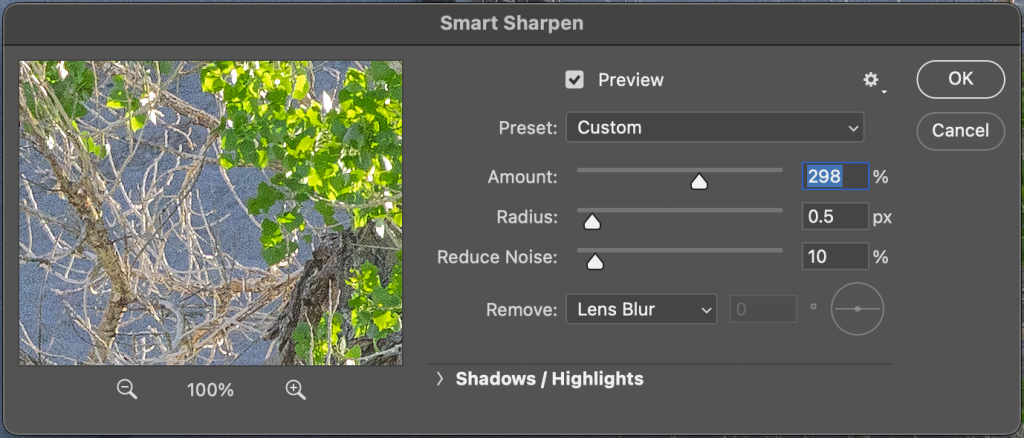
To use Smart Sharpen, duplicate the background layer. Do this by selecting your base layer and pressing Command + J (Mac) or Control + J (PC). Select the new layer that was created. Next, go to Filter > Sharpen > Smart Sharpen. Once the Smart Sharpen dialog box appears, you have control over a few different settings. First, the Amount controls how much sharpening will be applied. I recommend zooming in to your image and checking the Preview box. This way, you can see the results happen live to fine-tune the amount.
Next, you can control the Radius, which affects how far away from the edge will be sharpened. 0.5px is generally my go-to for almost all types of photos. Additionally, you can reduce noise at the same time. Sharpening can create noise, so using this slider in moderation is never a bad idea. Finally, you can choose which type of blur to remove. In most cases, Lens Blur is the option you should choose here, but don’t be afraid to play around with the other options.
Sharpening in Photoshop: Unsharp Mask
The Unsharp Mask tool is Photoshop’s quick and dirty way to apply a lot of sharpening in a hurry. This is perfect for images that are getting posted to the web or social media, where you want them to really pop and stand out, but not as ideal for images being viewed at higher resolutions. There isn’t quite as much control when using the Unsharp Mask, so it’s highly recommended to pair it with a layer mask for finer control.
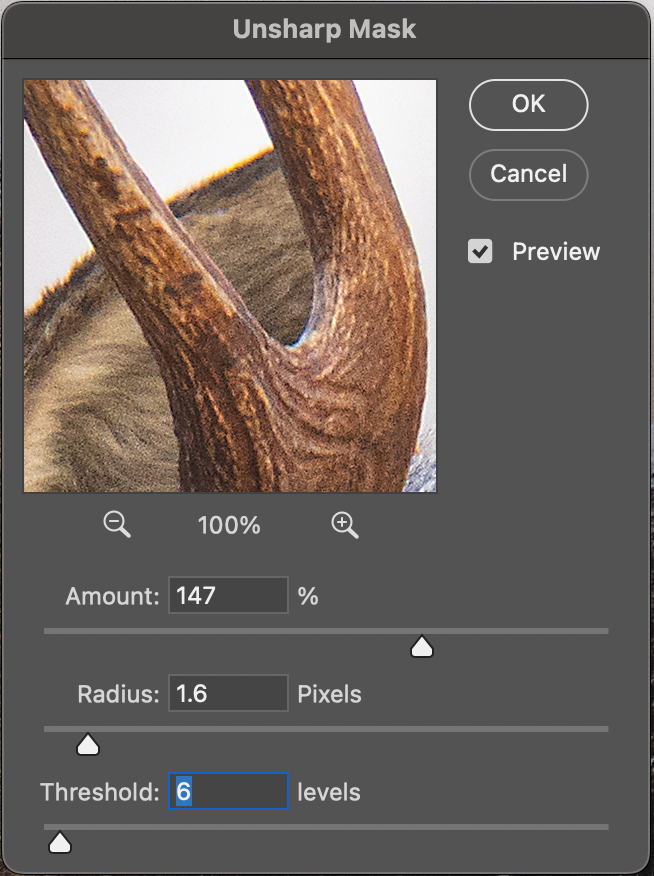
To use the Unsharp Mask, duplicate your base layer and press Command + J (Mac) or Control + J (PC). Select the new layer that was created and go to Filter > Sharpen > Unsharp Mask. First, adjust the amount, which controls how much sharpening will be applied. Then you can adjust the Radius, which controls how far away from the edge will be sharpened. Typically, this is going to look best between 0.5-5px. Finally, you can control the Threshold, which affects how different pixels must be from their surroundings in order to be sharpened. A threshold between 0-3 will typically mean everything is getting sharpened, while 5+ applies a much finer selection. Test out different numbers to see which looks best with your style of photo.
Sharpening in Photoshop: High Pass
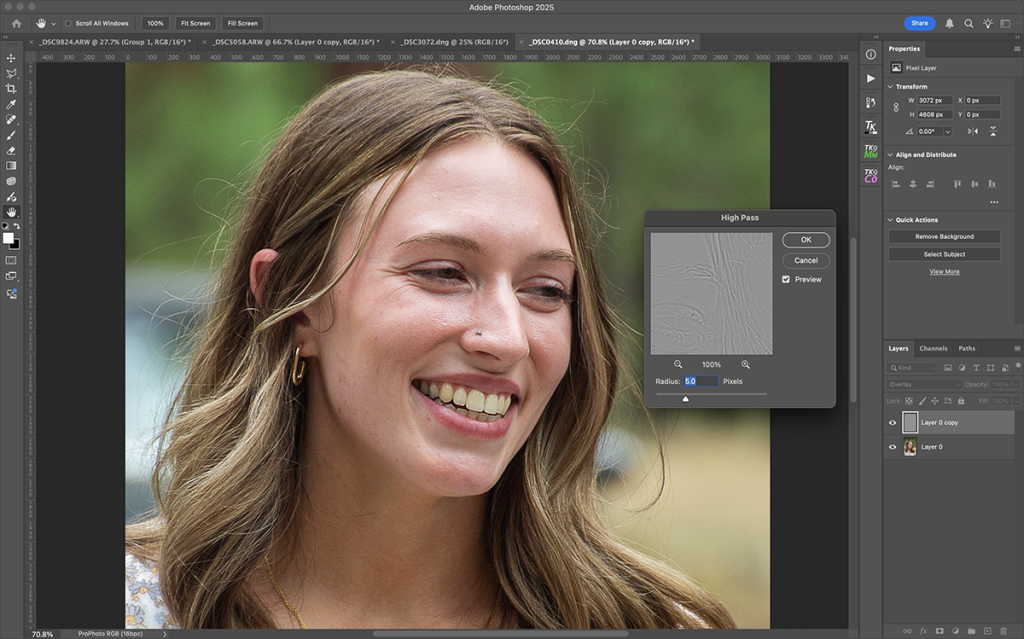
High Pass is a great way to manually make fine-sharpening adjustments to images with clear edges. For that reason, it’s usually the method of choice for portraits or other scenes where you want to make small edges pop. This filter doesn’t use any automation, so it works quickly and effectively.
To start, duplicate your base layer by pressing Command + J (Mac) or Control + J (PC). Select the new layer that was created and change the blend mode of this layer to Overlay. Go to Filter > Other > High Pass to access this filter. Zoom in to your image and adjust the Radius. Typically, somewhere between 2-5 pixels is ideal for portraits, but results may vary based on the sharpness of your lens and the camera sensor you are using. Once satisfied with the results, press OK and let the results load out.
Vivid Light (for Blurry Images)
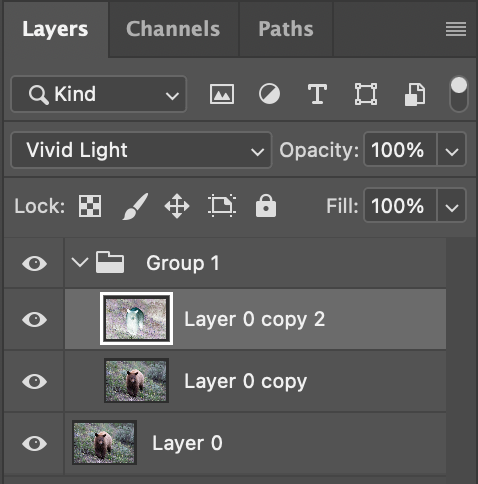
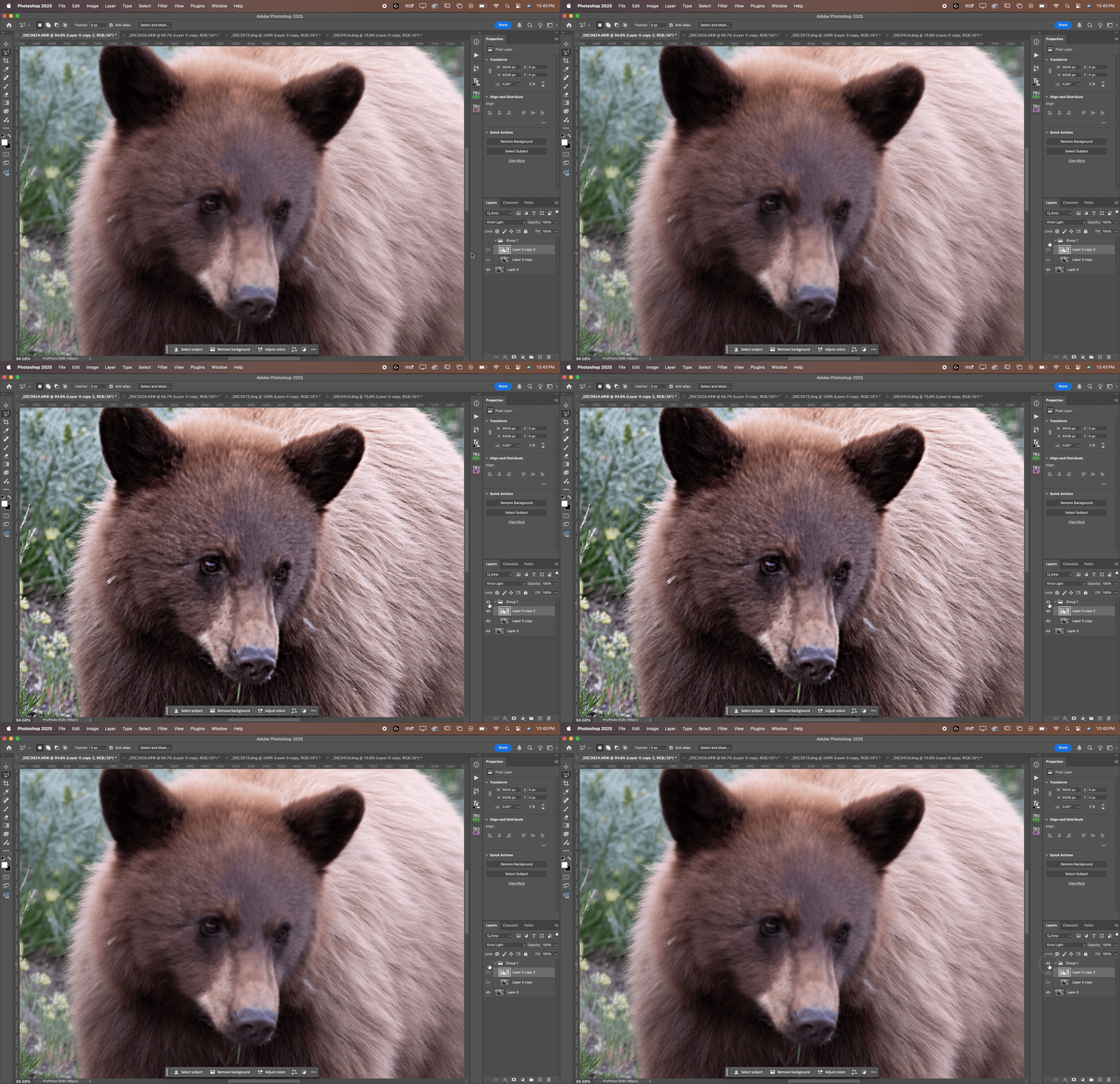
For those times when you just didn’t quite capture the best image in the field, there is still hope. While the results are nowhere near what you could get by getting the shot in camera, Photoshop can do some minor blur recovery by using this Vivid Light blend mode technique. This method should only be used when you have an image that is not in focus or contains motion blur in the scene.
First, duplicate the background layer twice by pressing Command + J (Mac) or Control + J (PC). Create a new group by pressing the folder icon on the bottom right corner and add both of the layers into the group. Then, invert the colors of the top layer by selecting it and going to Image > Adjustments > Invert. Change the blend mode of the inverted layer to Vivid Light, and change the blend mode of the group to Overlay. Select the layer with Vivid Light blend mode and go to Filter > Blur > Gaussian Blur. Increase the radius until you’ve achieved satisfactory results.
Pro Tip
When sharpening in Photoshop, it’s important to remember that any sharpening can be combined with a layer mask to fine-tune the sharpening. Sharpening can increase noise in the image, so it’s best to only sharpen in detailed areas of the frame, such as your subject. Avoid sharpening smooth areas like the sky to help reduce the noise in the image.
Whether you need to do a heavy sharpen for your next social media post or a fine sharpen for the next print you’re making, learning to sharpen in Photoshop is a skill that takes time. With so many options to choose from, it can be hard to know which tool to use and how to use it. My best advice is to play around with each of the tools and find what works best for you and the style of photography you do.