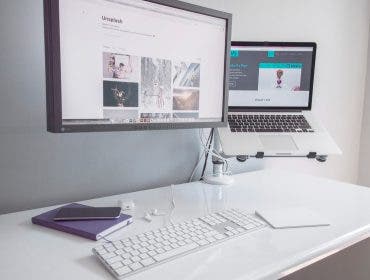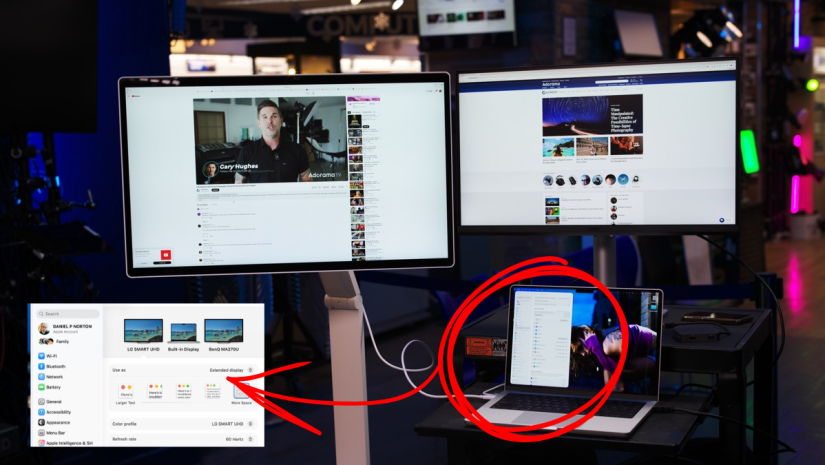
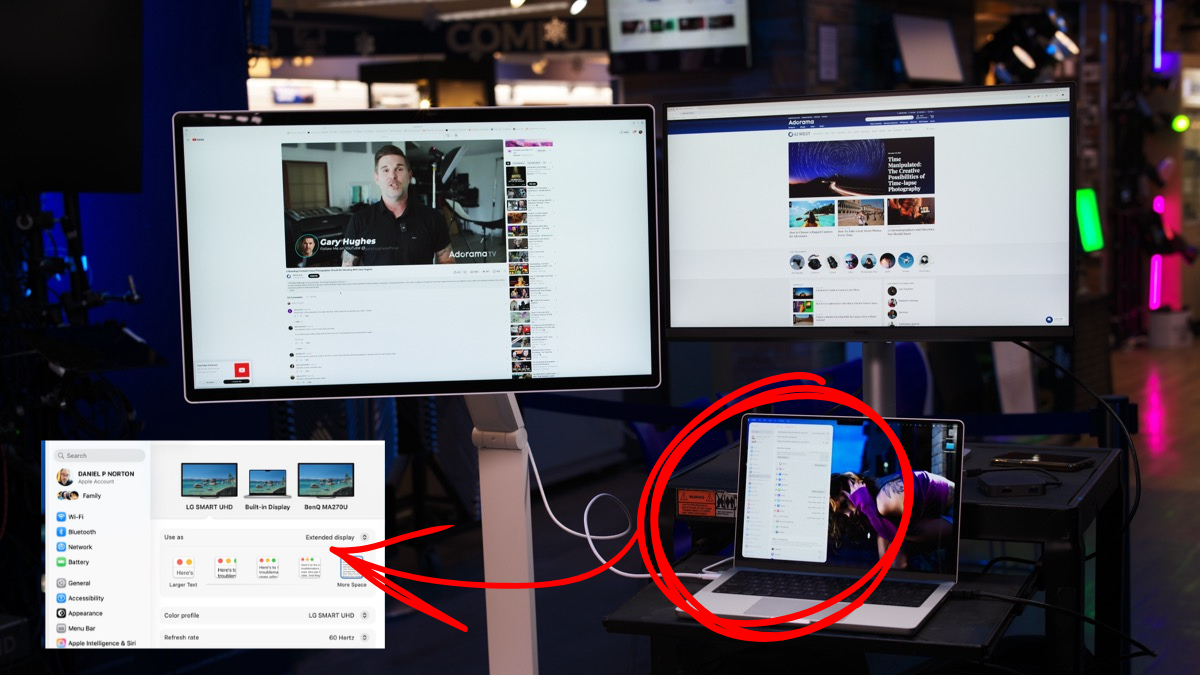
Photographers, video editors, writers, and frankly, all types of creators can benefit from having a dual monitor setup. The real estate alone can be a game-changer when managing multiple programs and projects. From retouching to editing to writing copy, in this creator economy, we are always multitasking. In this article, we will discuss the benefits of multiple monitors, but mostly, I’ll walk you through how to set up dual monitors.
The Right Workspace for the Job
Before we jump into the technical stuff for PCs and Macs, let’s touch on a few case studies. Many creators these days use laptops for their work, and simply adding one external monitor gives you a dual monitor setup. However, even with a laptop, having two external displays can be a game-changer.
The Photographer
I’ll hit this one first, a simple setup with one monitor with great color, like the LG Smart 32U889SA 31.5″ 16:9 4K Ultra HD Touchscreen IPS LCD HDR Monitor for fine editing, and a secondary monitor with your email, web browser, and other office apps means you can multitask as needed while keeping your photo editing space clear.
The Streamer
It seems everyone has a podcast or streams these days. For streamers, a dual monitor setup for your Mac or PC is almost a requirement. Keep one screen for interacting with your viewers and the other with your OBS windows clean and clear. For more on how to live stream, check out this article. If you are running a MacBook like me, the BenQ MA270UP 27″ 16:9 4K Ultra HD IPS LED HDR Nano Gloss Monitor is a no-brainer, as it supplies 90W of power when you connect via USB-C. We will discuss that further below.
The Video Editor
DaVinci on one screen, your edit in the other, do I need to say more?
I think you are getting the point. Let’s get on to the meat of how to set up dual monitors.
Check Your Specifications and Connections
It’s important to note that not all computers support dual monitors. This is especially true for older or budget model laptops. A simple search will let you know. In the case of some desktop computers, a new graphics card may be needed. This is most likely if you have an older Mac or PC; modern desktop computers typically support dual monitors natively.
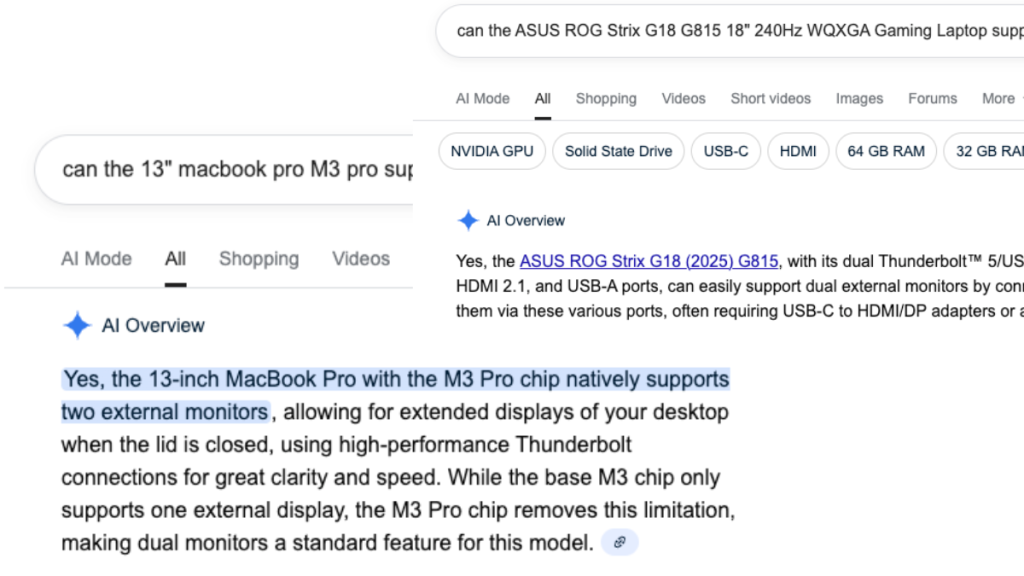
In order to support dual monitors, your computer needs the proper processing/graphics power, but also the correct outputs. These include HDMI, Display Port, and USB-C with Display Port Alternate Mode or Thunderbolt capabilities. Keep in mind, not all USB ports support video output.
Connect the Monitors to Your PC (by Max McAllister)
The next step is physically connecting both screens to your PC. This is a simple output-to-input connection, where the output comes from the GPU or motherboard, and the input is on the monitor. HDMI is universal, so you’ll typically find at least one of those inputs on your screen, and one output from the GPU or motherboard.
Take a standard HDMI cable, run one end from the PC’s output, and run the other to your first monitor’s input. Windows will automatically detect the display. By default, the first display connected will be the main one.
Repeat this process for your second monitor. You’ll again need to determine the output connection from your PC to the input connection on the second display. If they each have another HDMI connection, you can use that.
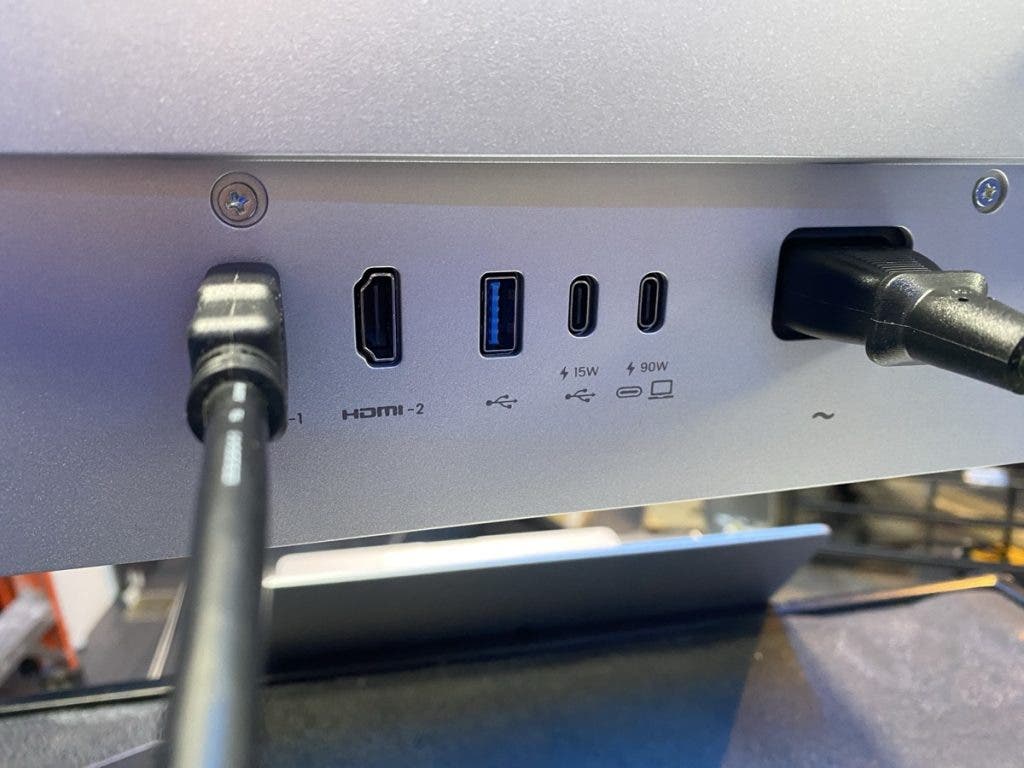
Don’t worry if the second output from the computer doesn’t match any inputs on the second monitor. Usually, there’s a cable for everything!
You might also be able to run a DisplayPort cable between the two devices (AKA Daisy-Chaining). Sometimes, though, you’ll have a mix of available connections between the PC and monitor.
You may also have USB-C (Display Port Mode). If the monitor has USB-C inputs, you are golden; otherwise, an adapter will be necessary.
It’s common to have to run DisplayPort from the PC to HDMI on the second monitor. This requires a DisplayPort to HDMI adapter cable. If you don’t have one handy, you can find a DisplayPort Cable here. One thing to keep in mind with a cable like this is that it’s unidirectional. Information only flows from the DisplayPort end connected to a GPU to the HDMI input on a display. Note that HDMI-to-DisplayPort adapters (the reverse) often require active adapters and may not work as simply.
Locate Your Display Settings
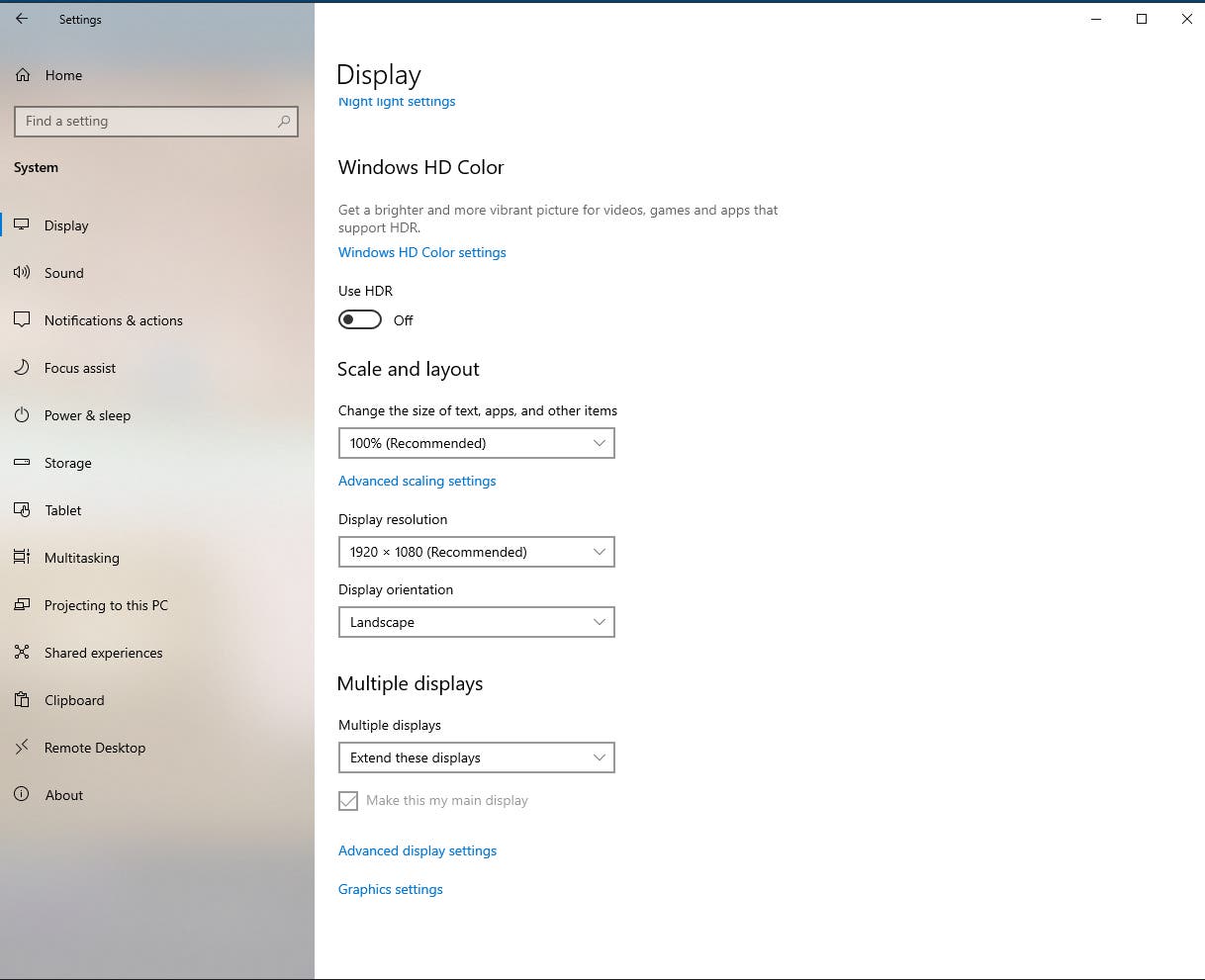
In a dual monitor setup, when your dual monitors are connected, you’ll now want to configure them. This can be as basic or as advanced as you’d like, since Windows does a great job of handling the setup automatically. The first screen it detects becomes the primary monitor, and any additional screens attached become secondary displays. It will default the Scale and Layout to 100%, and set the appropriate resolution.
To locate Display settings on Windows, use the following path: Start > Settings > System > Display
Rearrange Your Displays
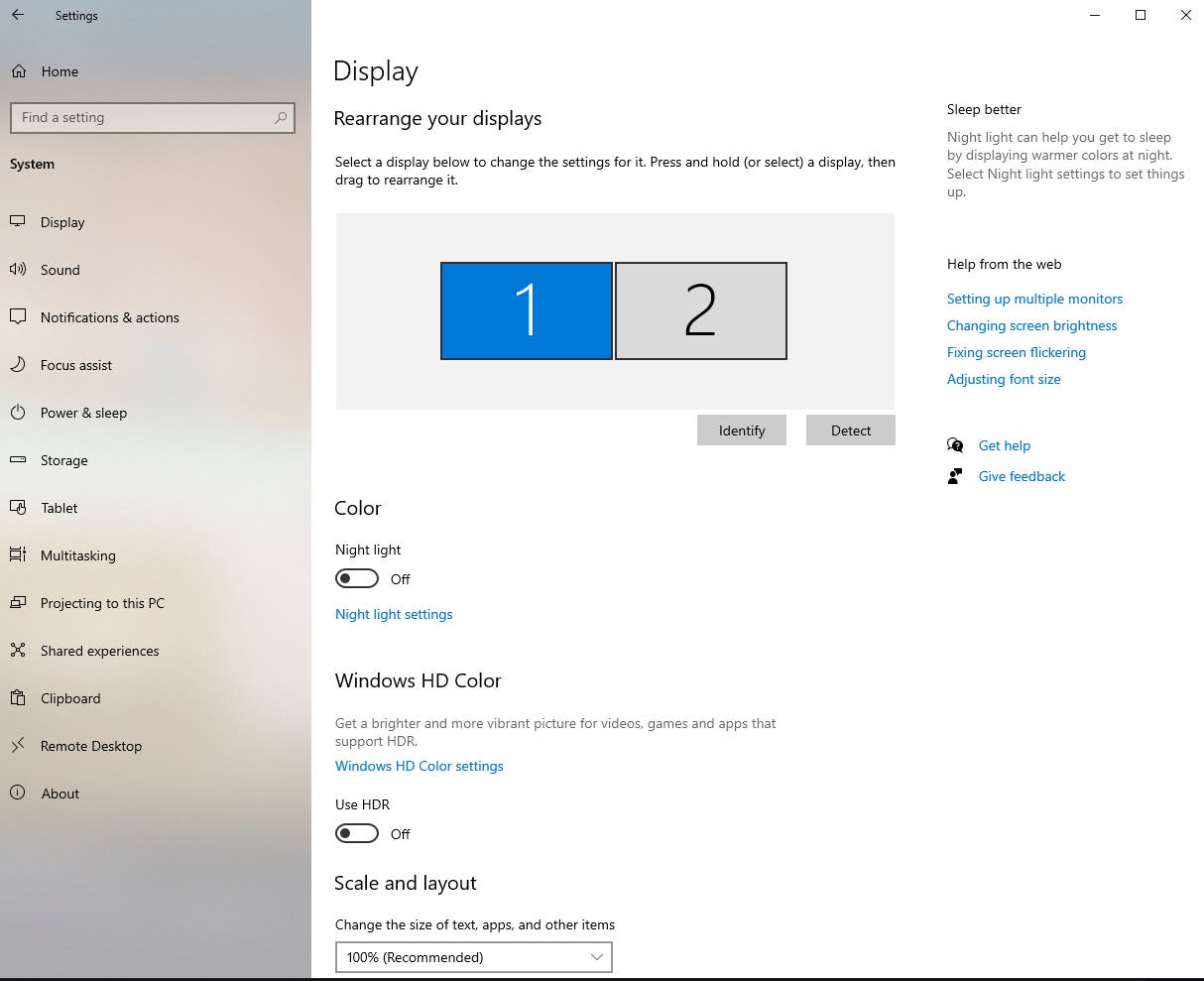
At the very top, you’ll find the “Rearrange your displays” window. Your dual monitors are represented as a large “1” and “2.” Use this window to click and drag the monitors to your desired arrangement. They can be placed side to side, one on top of the other, or however you like. This determines the direction you scroll between them.
If you’re unsure which display is which, you can click the Identify button. A box will appear on each monitor indicating which is “1” and “2.”
You can also adjust individual settings by selecting a monitor in the Rearrange window. It will highlight blue to show you your current selection. Now you can play with things like Windows’ Night Light feature, turn high dynamic range (HDR) on or off, change the resolution, and more.
At the bottom, you’ll also be able to make whichever screen the main display.
Adjust the “Multiple displays” setting
Toward the end of the Display window, you’ll be able to choose a setting under Multiple Displays. For most purposes, the default setting “extend these displays” is what you want. This lets you use the second monitor as an extension of the first.
“Duplicate these displays” mirrors the image from the main monitor onto the secondary one. “Show only on 1” or “Show only on 2” will turn off the other monitor based on your selection.
Enjoy the Extra Screen Space!
Thankfully, Windows makes it quick and easy to configure a dual monitor setup. The hardest part is figuring out which cables you’ll need for the physical connections. Once that’s over, though, you can sit back and take in your expanded visuals.
Start by dragging different applications over to the new monitor to declutter your primary screen. In no time, you’ll wonder how you ever got by on a single display!
Connect the Monitors to Your Mac (by Daniel Norton)
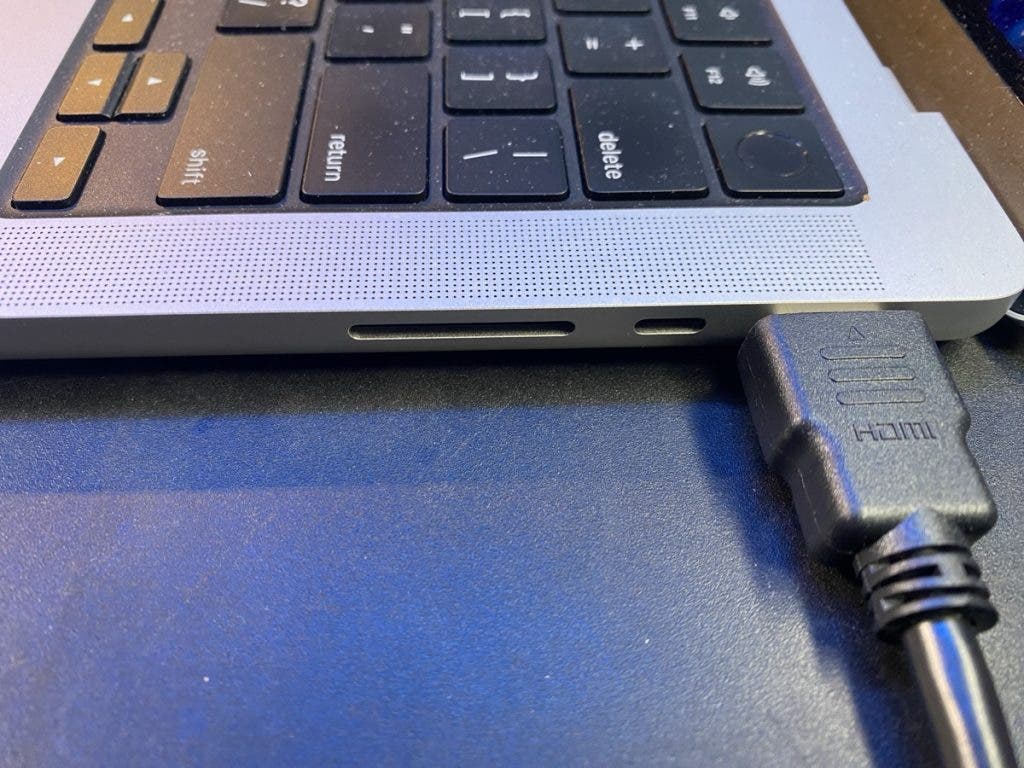
Just like with the PC above, you may have HDMI out, but most will have USB-C Thunderbolt as their connection. My MacBook Pro has a full-sized HDMI, so I was able to connect one monitor with a simple HDMI cable. The other I connected with Thunderbolt.
Adapters like the one shown from OWC are very useful if your monitor does not have USB-C inputs.
Locate Your Display Settings
If all goes right (and it usually does), within your display settings, you will see the attached monitors. Because I am using a laptop, we actually see three here. My first step is always to arrange the monitors so they match the physical layout on your desk. This makes it intuitive when you are mousing around.
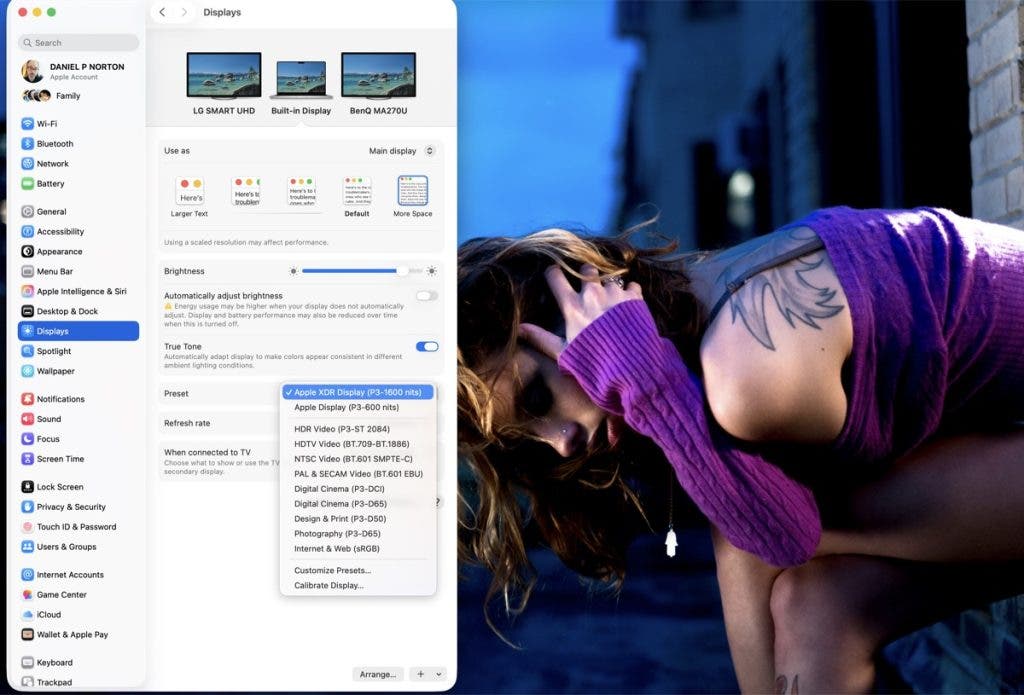
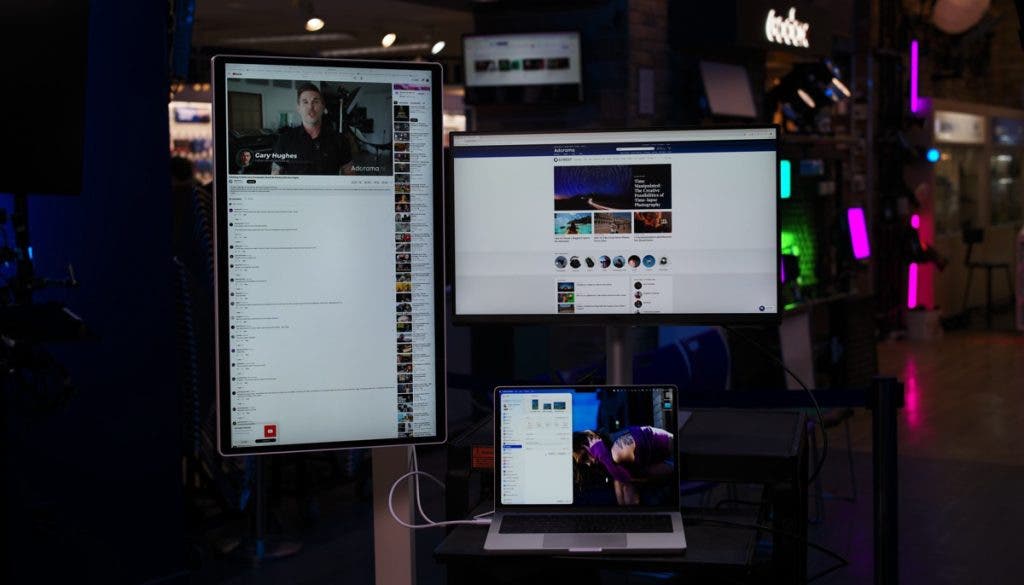
From here, you can also set your color preset, the resolution of the monitor, the refresh rate, and the orientation of the screen. Sometimes I like having a screen turned vertically when live streaming to keep up with the discussion in the comments.
Simple as That
In most cases, a dual monitor setup is a simple process these days. Still, I would set aside an hour or so, as gremlins can sometimes sneak in, and swapping ports or restarting your computer often helps rid you of these.
FAQ Dual Monitor Setup: What Else You Need to Know
Depending on the computer you are using, it should be as simple as plug and play. As soon as you plug the HDMI/Display Port into your computer, it should show up as a secondary monitor. If not, then you’ll want to follow these steps to troubleshoot.
First, you want to make sure your cable is plugged into your graphics card slot and not your CPU. If you’re using Windows, right-click on your desktop and click on “Display Settings”. You can also search “Display Settings” in the search bar. Make sure your secondary monitor is showing up as a display. If you scroll down to “Multiple Displays”, you can choose if you want to duplicate or extend your display. If it is still not showing up, then make sure Windows is updated and your graphics card is updated with the latest firmware.
For Mac computers, follow this step by step guide from Apple to help you connect a secondary monitor.
An HDMI splitter is intended to duplicate one output Image). For example, if you have a desktop computer connected to two monitors with an HDMI splitter, you will see the same image duplicated on each screen. You will not be able to extend the display. To create a dual monitor setup, you want an HDMI adapter, which will allow you to extend your desktop with two different monitors. Shop our full line of display adapters to get the proper unit for you.
All you need is two monitors and a computer! Your monitors should already come with the appropriate cables to connect to your computer. Once you have everything connected to your computer, you’re good to go! No extra equipment needed, unless you want to add dual monitor stands for more desk real estate.