I’ve been using DaVinci Resolve Studio for the past four years to put together my wildlife and landscape photography tutorials. My footage is all over the place. Sometimes it’s behind-the-scenes clips from the field, sometimes it’s me talking to the camera in my office. Or sometimes, just screen recordings and still photos. I need editing software that can pull all that together and make it look good. DaVinci Resolve has done that for me so far. But now that Apple has bundled Final Cut Pro with other creative apps in their Creator Studio, I’m curious. So, I decided to see how Final Cut Pro stacks up against DaVinci Resolve for the kind of work I do.
Final Cut Pro vs DaVinci Resolve Editing and Workflow Aspects
Final Cut Pro
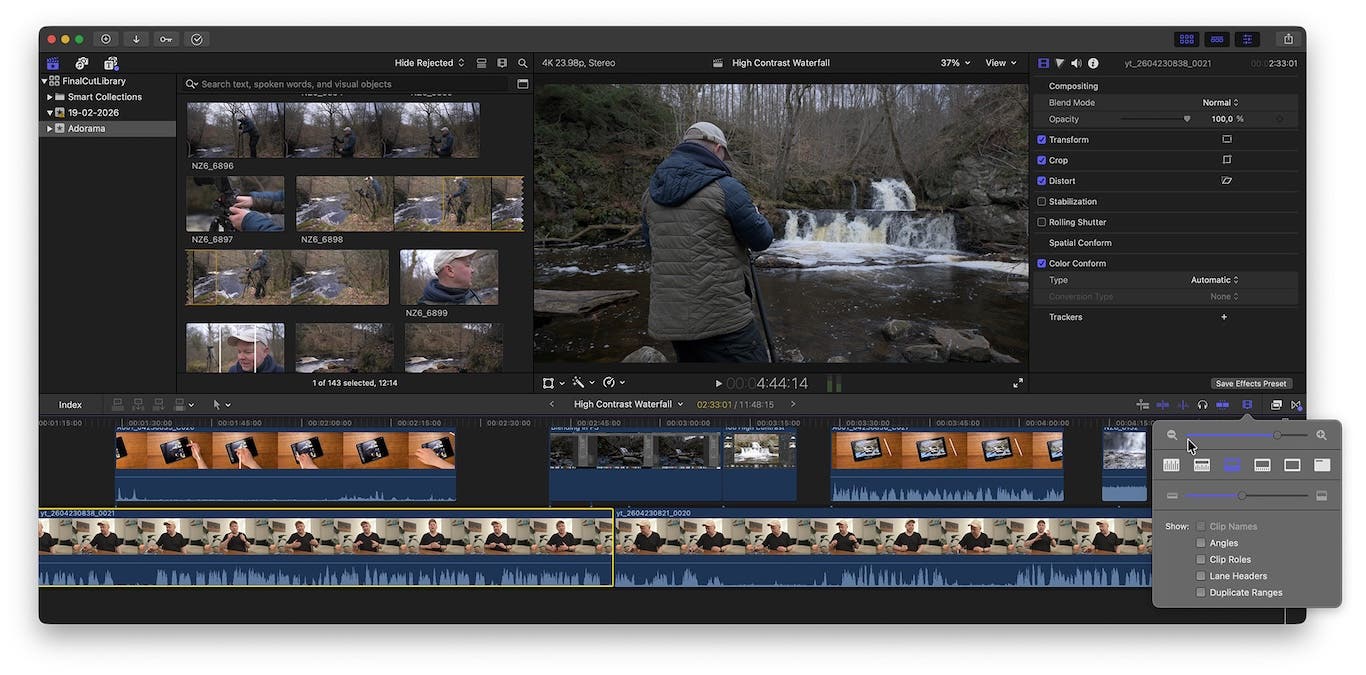
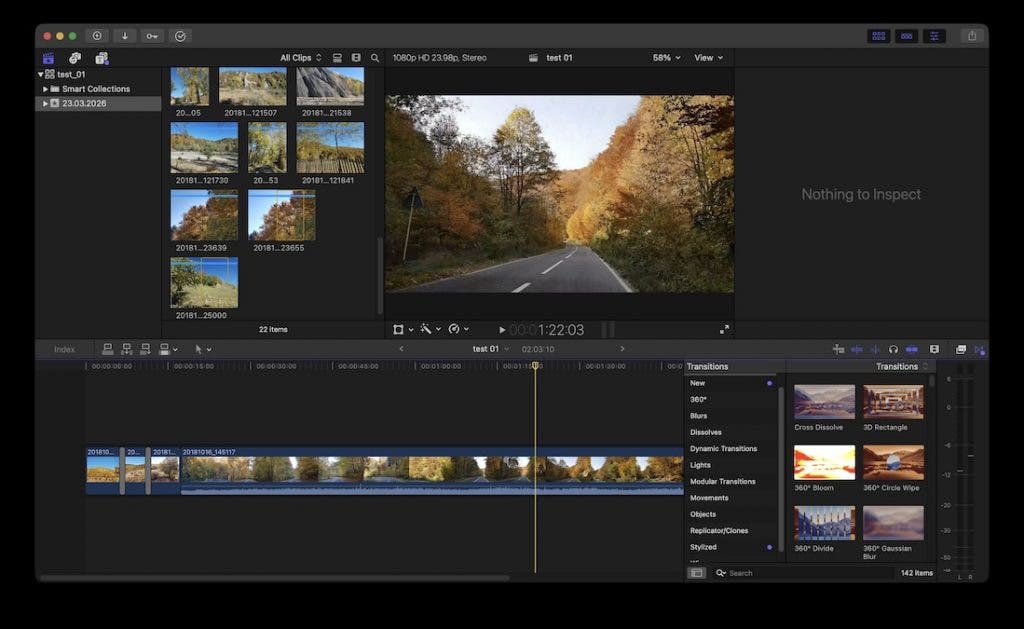
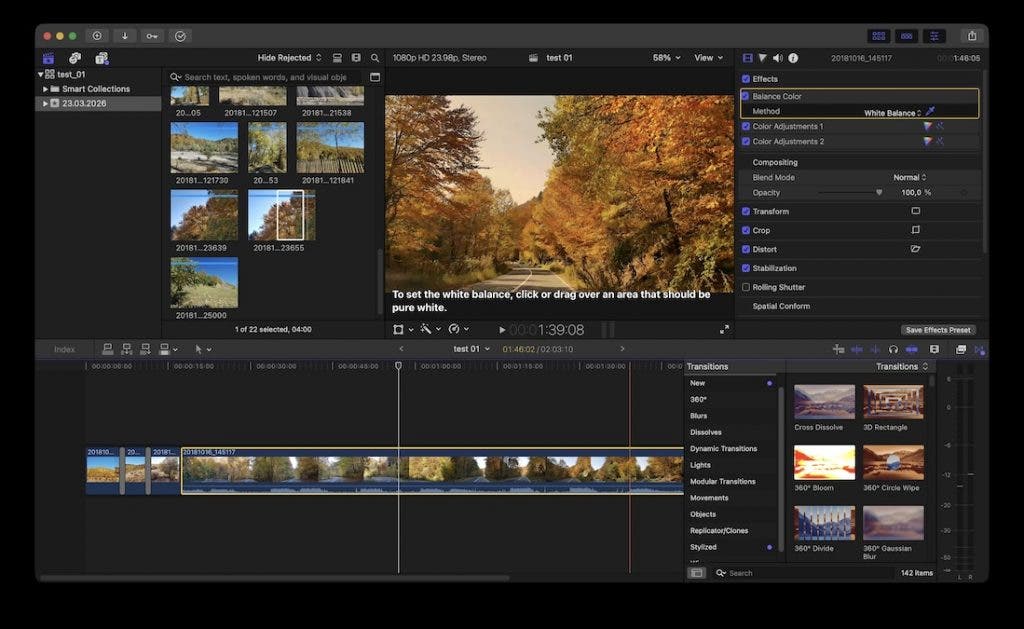
The first thing that stood out to me in Final Cut Pro was how open and easy the interface felt. Within a few clicks, I was able to drop in photos and video clips, add some transitions, and build a timeline. You can even scrub through your project just by moving the mouse. Adjusting color and white balance is simple, too. If you’re new to video editing, being able to put something together that looks good in just a few minutes is a big plus. Final Cut Pro feels like it’s built for anyone, whether you’re in a hurry or just starting out. I appreciate that.
Davinci Resolve
DaVinci Resolve splits everything into tabs, each for a different editing step. It keeps things organized, but if you like to jump around—say, add a file here or tweak color there—you have to switch tabs a lot. That can slow you down. However, you’ll want to edit in passes, like rough cut, b-roll, sound, color, and final polish for an efficient workflow. That said, if you prefer everything in one place, Final Cut Pro is a better fit. Ultimately, it’s about what works for your workflow. I’m used to the traditional setup, but I see why a simpler interface is appealing.
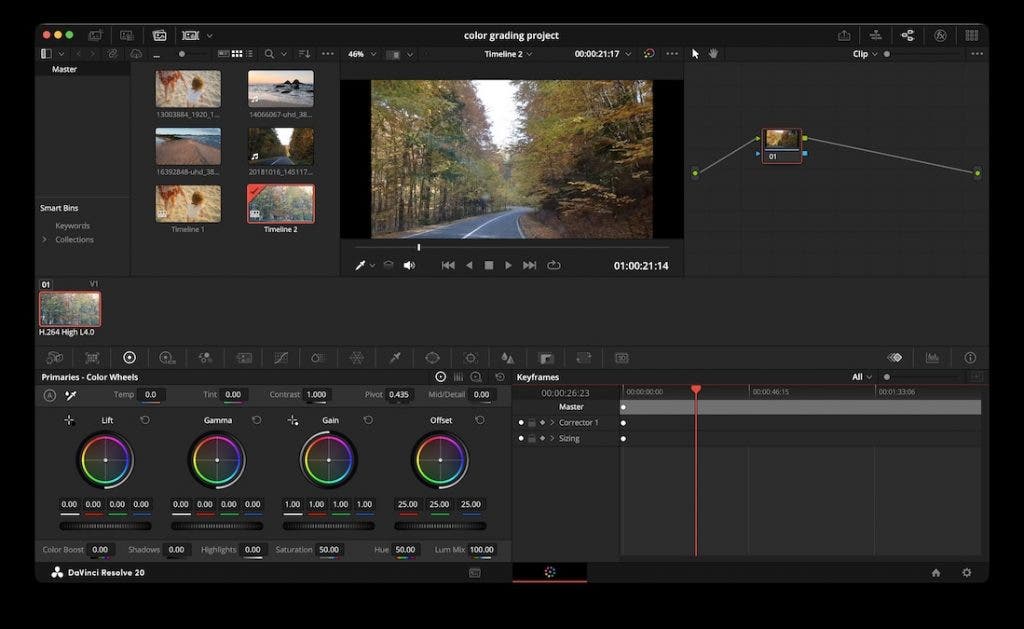
If you’re a pro editor, though, you’re probably after more than just a clean interface. DaVinci Resolve is packed with powerful tools and is built to handle just about anything you throw at it.
Color Work
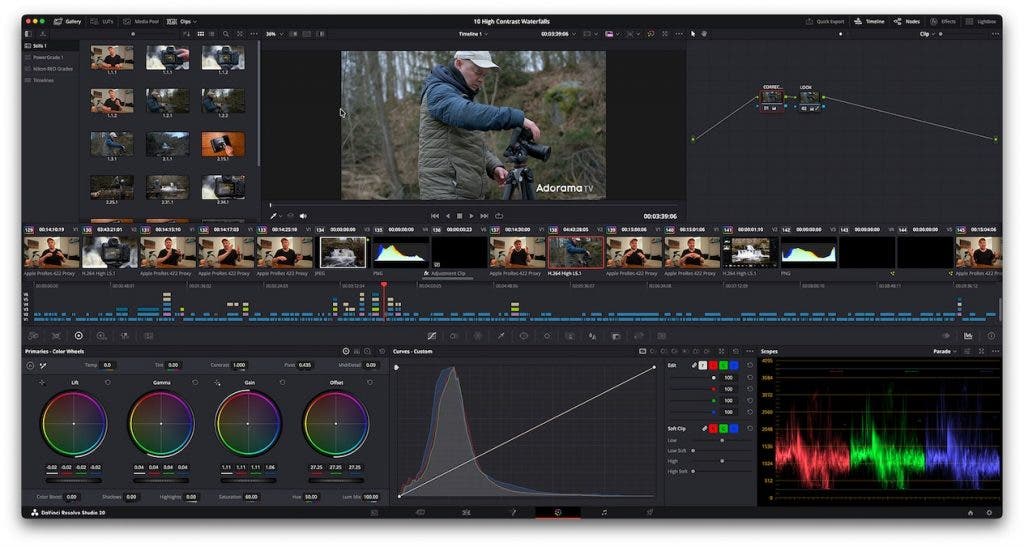
When it comes to color work, DaVinci Resolve is ahead of Final Cut Pro for me. You can get really detailed with color grading, though the node system takes some getting used to. It took me a while to figure it out, but once you do, you have a lot of control. Final Cut Pro uses layers, which are familiar if you’ve used Photoshop or Pixelmator. For most creators, that’s plenty for color tweaks, but if you want that cinematic, pro-level grading, DaVinci Resolve is the way to go.
Audio Tools and More
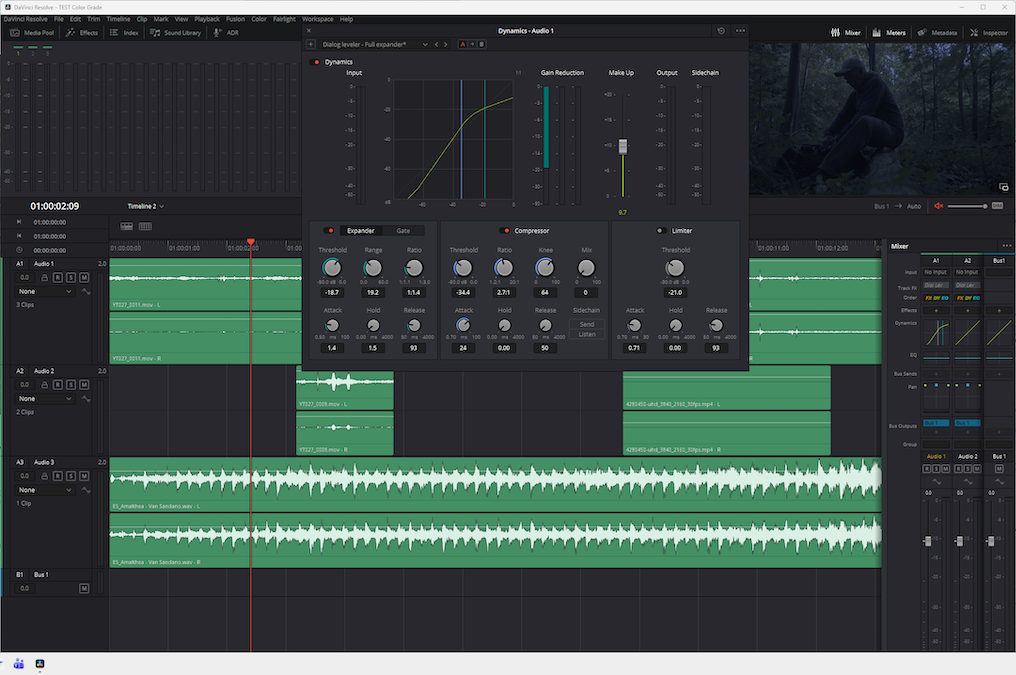
I like that DaVinci Resolve gives me a solid voice-over tool for those behind-the-scenes moments, plus both a classic multi-track timeline and a faster tape-style one. Having options is always good. If you need to dive into audio or VFX, Fairlight and Fusion are built right in. So, DaVinci isn’t just for tutorials or voice-overs—it’s ready for filmmaking, commercials, or even TV work.
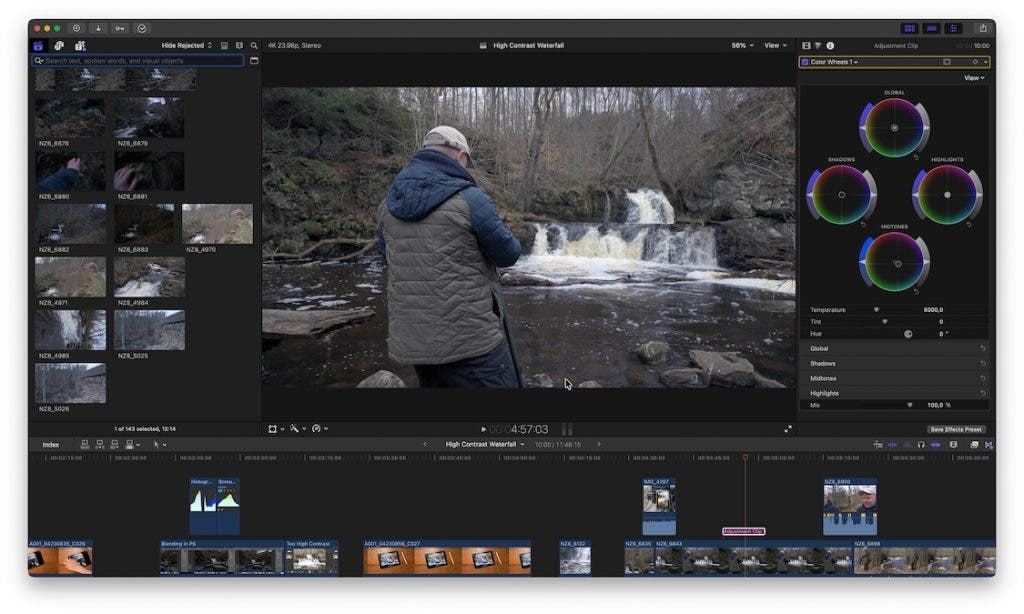
Final Cut Pro’s magnetic timeline keeps everything lined up, and the Audition tool makes it easy to manage different takes or camera angles. It’s efficient, no question. But if you want to do advanced animations or pro-level audio, you’ll need to use Apple Motion or Logic Pro, and I find the round-trip to other apps a bit annoying coming from DaVinci Resolve.
However, Adobe Premiere and After Effects users looking to make a switch to a new video editing software might not see it as an issue. Both Motion and Logic Pro are included in the Creator Studio bundle, but they’re still separate apps. Should you ever want to bail out of the Creator Studio Plan, you’ll need to buy them separately to keep your workflow; the cost adds up.
Final Cut Pro vs DaVinci Resolve: The AI Battle
DaVinci Resolve Studio has added a bunch of AI-based tools since version 19, which may come in handy for creating tutorials. The program can create timelines based on scripts, animate words whilst I speak, and assemble a multicamera timeline based on speaker detection. It also features an AI Audio Assistant able to create a professional audio mix. I don’t rely entirely on AI for these tasks, but it’s nice to have a good starting point. Keep in mind that most of these AI tools require the Studio license, not the free version.
Final Cut Pro has its own set of AI tools, like smart search for visuals and transcripts, a magnetic mask to pick out people or objects, and an auto-crop for social media. There’s even a beat detector that lines up your video with the music. I like keeping things organized, so the search and crop tools are especially useful for me.
Pricing and Resource Drain
I use the paid DaVinci Resolve Studio version (which now has a one-time fee of $295), and I know that the free version provides many of the features of the paid one and will keep most creators happy.
Final Cut Pro has a one-time fee of $299, but you need to add $199.99 for Logic Pro and $49.99 for Apple Motion if you want a level of complexity similar to DaVinci’s built-in tools. Even with the seemingly more affordable Apple Creator Studio, it still requires a $12.99 monthly subscription that adds up over time. In two years’ time, that adds up to $312, but keep in mind that you also get all the other apps like Pixelmator in the Apple Creator Studio bundle.
So, money could be a decisive factor when deciding between DaVinci Resolve and Final Cut Pro.
Final Cut Pro only works on Macs and iPads, while DaVinci Resolve works on Mac, Windows, and Linux, making it more flexible for different systems. A downscaled version of DaVinci Resolve is also available for iPad.
DaVinci Resolve prefers 32GB RAM for heavy color grading, but for basic 4K edits, it runs well on a Mac with 16GB.
Both programs are built for Apple Silicon, but DaVinci Resolve needs more power if you’re doing high-end editing.
Expandability
One of the things I love about DaVinci Resolve is the ability to enhance the workflow with dedicated hardware, like the DaVinci Resolve Speed Editor for faster editing on the cut page, or the DaVinci Resolve Micro Color Panel for faster, more precise color grading. For Final Cut Pro, you need to use third-party panels like LoupeDeck CT, which does bring you some of the way but requires setup time, and you might not be able to get all your desired cutting/grading features to fit a logical editing and grading workflow. That said, the Davinci panels offer little opportunity to customize their functionality. You need to use it as Blackmagic Design intended.
Is Final Cut Pro or DaVinci Resolve for You?
If you’re on Windows or Linux, or you don’t want to spend anything, DaVinci Resolve is your only real choice here. It’s the best free video editor I’ve found. If you’re on a Mac or willing to pay, things get a bit trickier.
If you’re already comfortable with editing software, I’d say pick the one that fits your workflow and feels right. Budget and resources matter, but trust your gut. Both Final Cut Pro and DaVinci Resolve let you try them for free, so spend some time with each on real projects. That’s the best way to see if you prefer DaVinci’s deep toolset or Final Cut’s magnetic timeline and organization.
If you’re just starting out, think about what you want to make. For YouTube, vlogs, quick edits, or short films, Final Cut Pro is probably the easiest and fastest way to get going. The interface is simple, it’s easy to pick up, and it works well with other Apple apps. If you need to get content out quickly, this could be your answer. You can always subscribe to Apple Creator Studio for as long as you need it.
But if you want to make professional videos, cinematic projects, or need an all-in-one editor, DaVinci Resolve is worth the effort. It takes time to learn, but if you stick with it and dig into the advanced tools, you’ll have a powerful setup. It’s used by filmmakers, editors, and VFX artists everywhere, so it’s a solid skill to have. If you want to edit for free and don’t mind a learning curve, I would go with Davinci Resolve (free version).
Final Thoughts
So, that’s my take on DaVinci Resolve and Final Cut Pro as someone who makes wildlife and photography tutorials. DaVinci Resolve gives you more built-in tools and flexibility, plus a great free version. Final Cut Pro is faster, easier to use, and fits right into the Apple world. My advice? Try both and see what feels right for your workflow, gear, and budget.