Apple’s way of doing things, with its smooth integration and synchronization between apps and intuitive shortcuts, suits me like a glove. I rely on built-in Mac apps whenever I can, and I believe they make me more productive. But I haven’t yet found proper apps for professional photo and video editing within the Apple ecosystem. This has made me very eager to try Apple Creator Studio. And so, I did, for three months.
What Is Apple Creator Studio?
Apple Creator Studio is a bundle of apps designed to meet creators’ needs for editing photos and videos, writing text, producing and editing music, and creating content of all sorts. It includes premium content for four built-in apps on any Apple device:
- Pages
- Keynote
- Numbers
- Freeform (Will be added soon)
And six new installation apps:
- Final Cut Pro, for editing and creating films
- Motion, for creating animations
- Compressor, for compressing and exporting videos
- Logic Pro, for music production
- Main Stage, for live music performance
- Pixelmator Pro, for creating and editing images
As a wildlife and landscape photographer and creator of written and video tutorials, I am mostly interested in having one integrated ecosystem. It should cover my photo and video editing requirements, helps me write, and eases my content management. Thus, from all the apps and premium content offered by Apple Creator Studio, my focus during these three months was on Pixelmator Pro and Final Cut Pro.
However, I was no stranger to Pages, Notes, and Compressor when the need arose. Out of curiosity, I looked at how my workflow would if I switched to Apple Creator Studio. Here’s how my three months using Apple Creative Studio passed.
What I Liked About Apple Creator Studio During the Three Months of Using It
First of all, I find it very efficient (and rather affordable) to have all apps bundled up under one subscription. Instead of multiple subscriptions, I have only one payment to worry about. And it is less than paying individually for each app, at least in the short run.
I also like the fact that I can use Pixelmator Pro and Final Cut Pro both on a Mac and on an iPad. Additionally, the premium content for Pages and Numbers applies to the iPad and iPhone versions as well. I probably won’t do major editing tasks on small-screen devices, or do quick retouches on the go.
However, for drafting a tutorial or script, or taking notes, they are a lifesaver. Also, once you find a premium content template or smart formatting that you like, it would be frustrating not to be able to access it on all your devices. The less frustration I can accumulate, the better the workflow I have.
Apple Creator Studio apps are optimized for Mac users in terms of workflow and shortcuts, as well as computer performance. It means the apps know you have a certain type of chip and run smoothly and efficiently on it. For Final Cut Pro and Pixelmator Pro, it means fast rendering, smooth playback, support for advanced AI features, and extensive iPad functionality (even though an iPad has less processing power than a MacBook).
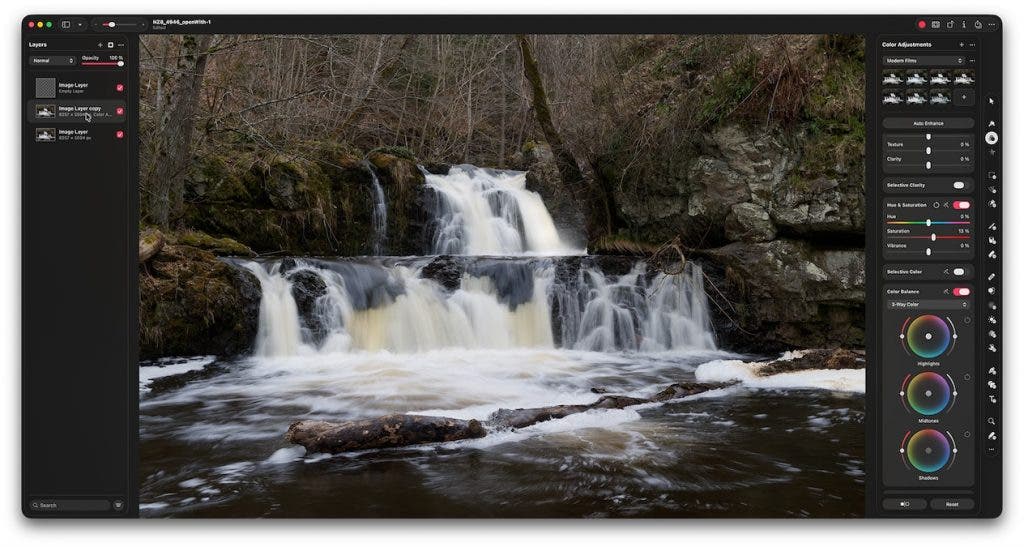
Going from Final Cut Pro to Compressor takes just one click, and your videos are exported in the desired format. These apps are designed to work together and smoothly integrate within the Apple ecosystem. Finder, Photos, and iCloud are just a few of the many familiar faces you’ll come across while using the Studio.
Inside the Apps: Smart Tools and Asset Libraries
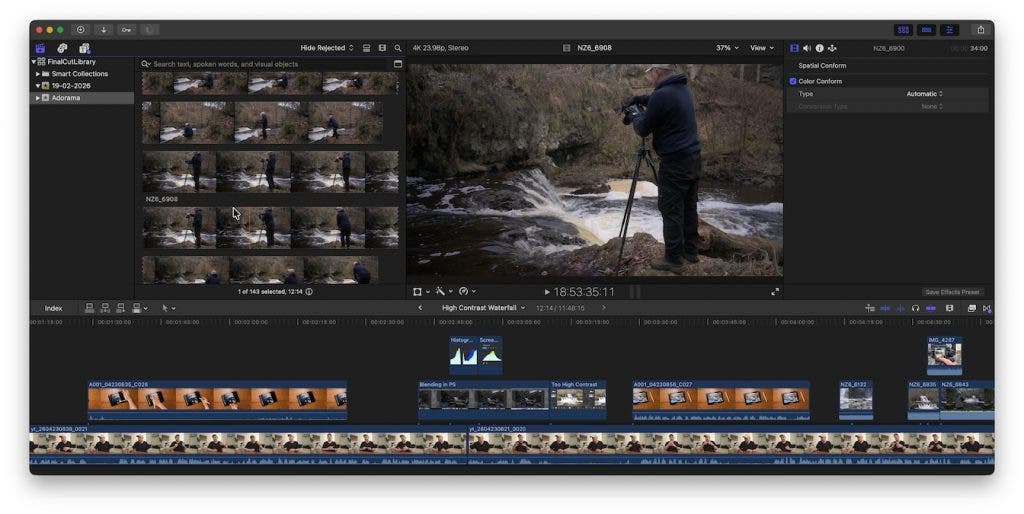
If you like AI-based features, you’ll be glad to know there are more of them in the bundle than in individual apps. For instance, Pixelmator Pro comes with a Warp tool, an enhanced upscaling tool, a smart functionality for background removal, and intelligent suggestions for cropping and others. Final Cut Pro features a Montage Maker, visual search, transcript search, and even beat detection.
And although I don’t usually cut directly on the beat, I can appreciate the Beat Grid feature. It enables one to align the video with the beat of a potential music. Plus, users have the option of creating music in Logic Pro and then importing it into Final Cut Pro in two clicks. I think many creators will like this.
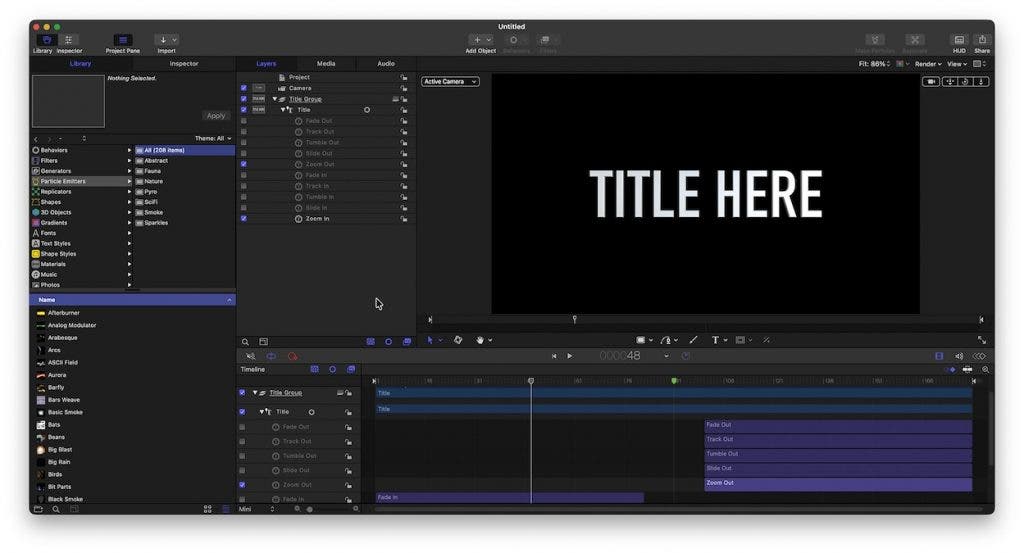
During these three months, I browsed through Apple Creator Studio’s libraries a lot. Final Cut Pro has plenty of resources for creating titles, generating objects, textures, and backgrounds, and adding sound and visual effects. Pixelmator Pro includes mockups for digital and physical products, as well as royalty-free stock images you can use. You can customize templates from Pages, Numbers, and so on in Pixelmator Pro.
Although my work doesn’t require many assets, I appreciate the effort that goes into providing them, and I’m sure many content creators use them regularly.
Where Apple Creator Studio and I See Things Differently
Where’s The Lightroom Alternative?
At the beginning of the test, with all the apps installed, I was ready to dive in and begin to edit one of my photos. But wait, where’s the tool that helps you organize and cull your photos and raw files efficiently?
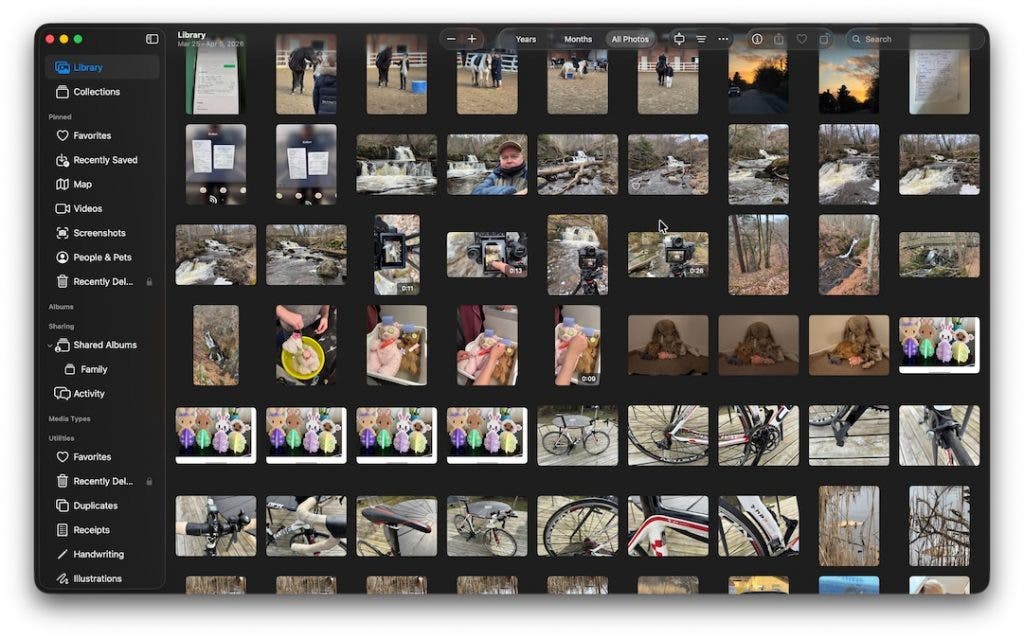
Apple wants me to use the built-in Photos app for this! The thing is, this only works if you import your photos directly through the Photos app, instead of just copying the files to your hard drive, like I usually do.
However, I don’t like having all my precious photos baked into a single Photo database file, which, in the event of file corruption, could cause me to lose all my photos. So, without an easy way to browse my files, I felt a little annoyance beginning to grow. If you already use the Photos app and are happy with this approach, you will likely not be annoyed by this.
I understand that Apple considers Pixelmator Pro an alternative to Adobe Photoshop, a tool for image editing and manipulation, as well as for creating images from scratch, as needed for graphic design and similar tasks.
What I struggle a bit to understand is why the image processing software included in Apple Creator Studio doesn’t have a photo asset manager. You simply can’t expect professional photographers, videographers, and content creators to use the built-in Photos app or the Finder app solely. They definitely need something more feature-rich and efficient than that for organizing thousands of files.
For Creators or Professionals: Simplicity Instead of Features
Don’t get me wrong, but I think it’s worth making a distinction between creators and professionals within photography and videography. They have different needs.
As a professional photographer, I want control over every aspect of the creative process. I need luminosity masks to create my landscape photos. I need a full-featured Lightroom alternative, just like professional video editors need efficient video editors that integrate with special editing panels and so on. We need the features to create the absolute best work we can.
Creators (who aren’t professional photographers or videographers) need simpler photo and video editing tools to be more efficient when creating videos and editing photos. As the name “Apple Creator Studio” implies, it is these types of creators that will benefit from this bundle.
Creator Friendly Pricing
Because my work is focused on photography and videography, I don’t need all the apps included in the Studio. However, the bundle’s price is low enough that it doesn’t matter much. You can get the entire bundle for $12.99 per month or $129 per year. Fair pricing that’s for sure.
However, if someone already has a Final Cut Pro or Logic Pro license, purchasing the Creator Studio subscription effectively doubles the cost of the software. I would prefer to configure my subscription and pay only for the added apps.
Is Apple Creator Studio for Me?
Apple Creator Studio’s value for money comes from using all its apps and reaping their benefits. For instance, it makes sense when you use the family sharing option, frequently use apps on iPad, create mixed media, and need nothing more than what Apple Creator Studio offers.
I wouldn’t recommend getting Apple Creator Studio if you are a professional within photography and videography and need the features from Adobe Creative Cloud, Avid Pro Tools, DaVinci Resolve, Photoshop, and so on.
Also, keep in mind that if you want just one or two of the apps included in the bundle and don’t need the additional features, you may consider purchasing them individually. Choose the best long-term offer.
On a personal level, during the three months I tested these apps, I didn’t find myself ready to give up the software I already have. Not because I didn’t like the super-integrated ecosystem (I did!), but because I needed more advanced and precise photo and video editing tools and a more complex digital asset manager. I use DXO Photolab, Adobe Photoshop, and DaVinci Resolve, three programs that have nothing in common but provide me with the specific tools I need, albeit not as an integrated workflow.
In the context of Apple Creator Studio, my work is a niche. I don’t do graphic design, animation, music production, or music performance. So, it doesn’t justify me getting the whole package. However, considering the exquisite fluidity, intuitive workflow, and valuable AI support, I’m sure many creators will be very happy with it.
Final Thoughts
I gave three months to testing Apple Creator Studio from the perspective of a nature photographer and videographer. In the end, I made up my mind to stick to my current software. However, I was drawn to the intuitive ecosystem that makes switching between apps effortless and speeds up your workflow.
I advise you to try the free trial and see if it suits you. In my opinion, Apple Creator Studio excels for those who utilize its full ecosystem and AI features. However, it may not suit niche professionals like me.